
Lesson 67: Building the “My Purchases” Dashboard for Buyers

Overview
In the previous lessons, we completed the backend transaction workflow:
- Auctions close automatically.
- Winners are determined.
- Transactions are created.
- Administrators can manage transactions.
- Administrators can inspect detailed transaction information.
However, buyers currently have no way to see the auctions they have won.
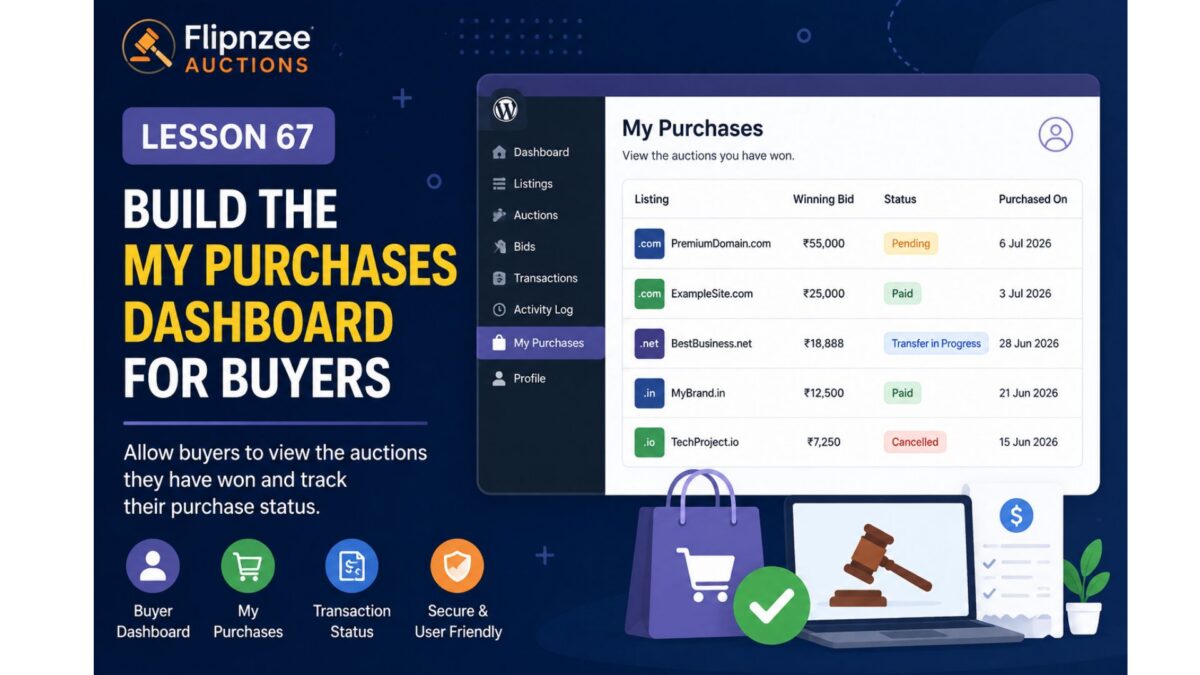
In this lesson, we will build the first user-facing transaction dashboard by introducing a My Purchases page.
Why This Lesson Matters
Imagine winning an auction on Flipnzee.com.
After placing the winning bid, you naturally expect to see:
- What did I buy?
- What was my winning bid?
- Has the seller been notified?
- Has payment been received?
- Has the domain transfer started?
Without a buyer dashboard, users would need to contact support for every update.
The My Purchases page solves this problem.
Current Workflow
Auction

↓

Winner

↓

Transaction

↓

Administrator
New Workflow
Auction

↓

Winner

↓

Transaction

↓

Buyer Dashboard
What We’ll Build
A new shortcode:
[flipnzee_my_purchases]
When a logged-in buyer visits the page, they’ll see:
| Auction | Winning Bid | Status | Purchased |
|---|---|---|---|
| PremiumDomain.com | ₹55,000 | Pending | 6 Jul 2026 |
| ExampleSite.com | ₹25,000 | Paid | 3 Jul 2026 |
If the visitor is not logged in, they’ll see a friendly message asking them to sign in.
Files We’ll Modify
New
includes/class-my-purchases.php
Modify
flipnzee-auctions.php
Modify
includes/class-shortcodes.php
Reuse
includes/class-transaction-manager.php
Features
Step 1
Create the My Purchases class.
Step 2
Register the shortcode.
Step 3
Verify the user is logged in.
Step 4
Retrieve transactions where:
buyer_id = current_user_id()
Step 5
Display purchases in a WordPress table.
Step 6
Show:
- Listing
- Winning Bid
- Status
- Purchase Date
Step 7
Handle empty results gracefully.
Example:
You haven't purchased any auctions yet.
Expected Result
Logged-in buyers will see:
My Purchases

------------------------------------------------

Listing

PremiumDomain.com

Winning Bid

₹55,555

Status

Paid

Purchased

6 July 2026

------------------------------------------------

ExampleSite.com

Winning Bid

₹10,000

Status

Pending

Purchased

5 July 2026
Guests will see:
Please log in to view your purchases.
Future Enhancements
This page is intentionally designed to grow over time. Future lessons can extend it with:
- View Transaction link
- Escrow progress
- Payment confirmation
- Domain transfer status
- Seller contact (when appropriate)
- Transaction timeline
- Download invoice
- Email history
Skills You’ll Practice
- WordPress shortcodes
- User authentication
- Current user retrieval
- Database queries with prepared statements
- Frontend table rendering
- Secure output escaping
- User dashboard design
Difficulty Level
Intermediate
This lesson introduces the first buyer-facing dashboard in the Flipnzee Auctions plugin. It connects the backend transaction system to the frontend, giving buyers immediate visibility into their purchases while establishing a reusable pattern for future user dashboards such as My Sales, My Auctions, and My Bids.
Why This Is the Right Next Step
From a marketplace perspective, this lesson provides immediate value to end users. Administrators already have the tools to manage auctions and transactions, but buyers need confidence that the platform is tracking their purchases. By introducing My Purchases, Flipnzee becomes more than an admin-managed auction system—it begins to function as a true online marketplace where users can monitor their own activity. This also lays the groundwork for future escrow updates, payment tracking, and ownership transfer notifications.