
WordPress Plugin File Structure Explained

Series: WordPress Development From Scratch
Level: Beginner to Intermediate
Project Reference: Flipnzee Analytics
Introduction
As your WordPress plugins become more powerful, placing all your code inside a single PHP file quickly becomes difficult to manage.
While a simple plugin may only contain one file, professional plugins often contain dozens or even hundreds of files organized into folders.
In this tutorial you’ll learn:
- Why plugin structure matters
- How beginner plugins are organized
- How professional plugins are organized
- Common plugin folders and their purposes
- How the Flipnzee Analytics plugin is structured
- Best practices for scalable plugin development
By the end of this lesson, you’ll understand how to organize your WordPress projects like professional plugin developers.
The Problem with Single-File Plugins
In our first tutorial, we created a plugin using a single file:
my-first-plugin
└── my-first-plugin.php
This works perfectly for simple plugins.
However, imagine adding:
- Admin settings pages
- CSS files
- JavaScript files
- API integrations
- Analytics reports
- Dashboard widgets
- Shortcodes
Soon your file may grow to thousands of lines.
Example:
my-first-plugin.php
- 300 lines of settings code
- 500 lines of API code
- 400 lines of shortcode code
- 600 lines of analytics code
Finding bugs becomes difficult.
Updating features becomes risky.
This is why professional developers organize plugins into folders.
A Better Structure
Instead of one giant file:
my-first-plugin.php
Use:
my-first-plugin
├── assets
├── includes
├── admin
├── templates
└── my-first-plugin.php
Each folder serves a specific purpose.
This makes development easier and more maintainable.
The Main Plugin File
Every plugin has an entry point.
Example:
my-first-plugin.php
This file usually contains:
- Plugin header
- Security checks
- Constants
- Required files
- Initialization hooks
Example:
<?php

/*
Plugin Name: My First Plugin
Version: 1.0
*/

if (!defined('ABSPATH')) {
    exit;
}

require_once plugin_dir_path(__FILE__) . 'includes/functions.php';
Think of this file as the plugin’s front door.
The Includes Folder
Most plugins have an:
includes/
directory.
Purpose:
- Core functions
- API integrations
- Helper functions
- Business logic
Example:
includes
├── functions.php
├── api.php
├── helpers.php
Instead of placing everything inside the main plugin file, we separate functionality into reusable modules.
The Admin Folder
Administrative functionality belongs inside:
admin/
Examples:
- Settings pages
- Dashboard menus
- Reports
- Administrative tools
Example:
admin
├── menu.php
├── settings-page.php
├── reports.php
This keeps backend functionality separate from frontend functionality.
The Assets Folder
Every plugin eventually needs styling.
The assets folder stores:
assets
├── css
├── js
└── images
Example:
assets
├── css
│   └── admin.css
├── js
│   └── admin.js
└── images
    └── logo.png
Benefits:
- Cleaner organization
- Easier maintenance
- Better scalability
The Templates Folder
Many plugins generate frontend output.
Instead of mixing HTML and PHP together, templates help separate presentation from logic.
Example:
templates
├── dashboard.php
├── report.php
└── widget.php
Benefits:
- Cleaner code
- Easier customization
- Better readability
Understanding Separation of Concerns
Professional developers follow a principle called:
Separation of Concerns
Each file should have one responsibility.
Bad:
settings
analytics
HTML
CSS
API calls
database queries
all inside one file.
Good:
admin/settings.php
includes/analytics.php
templates/dashboard.php
assets/css/style.css
Each component has a dedicated location.
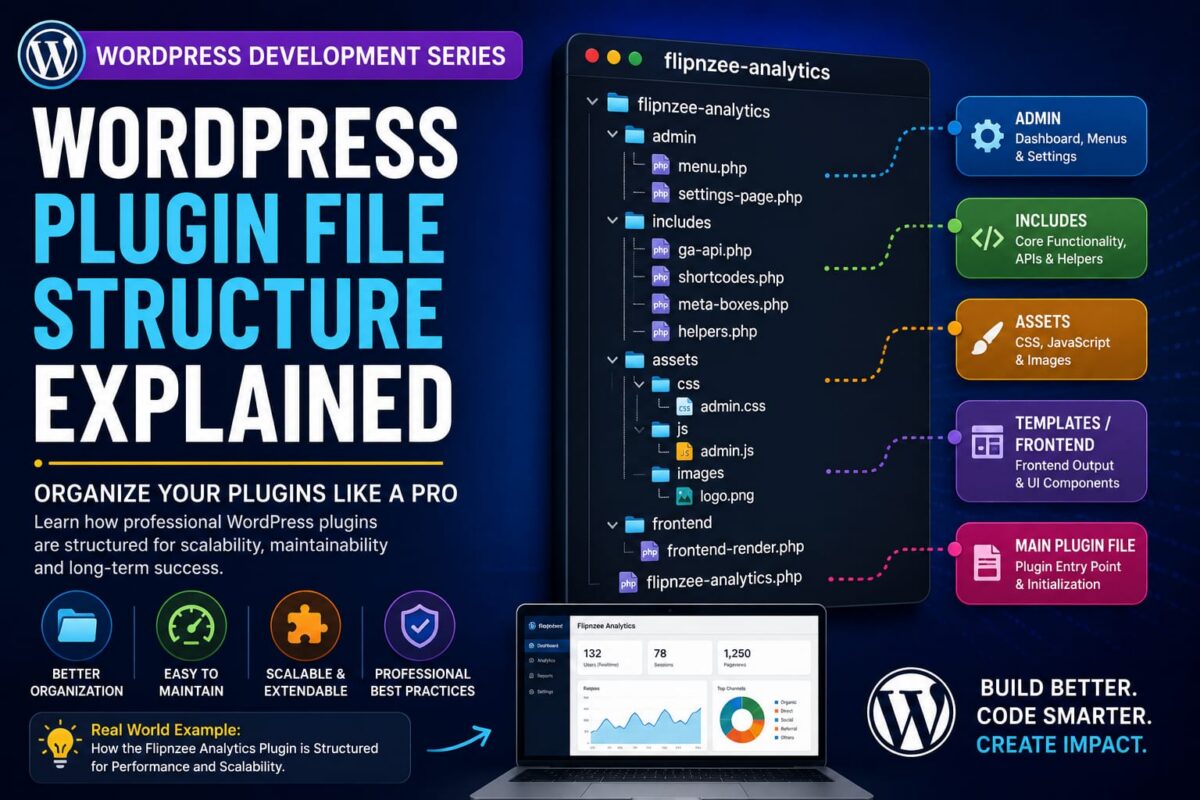
Real Example: Flipnzee Analytics Plugin
The Flipnzee Analytics plugin follows a modular architecture.
Its structure looks similar to:
flipnzee-analytics
├── assets
├── includes
│   ├── admin
│   ├── ga-api.php
│   ├── shortcodes.php
│   └── meta-boxes.php
├── frontend
└── flipnzee-analytics.php
This structure allows the plugin to support:
- Google Analytics integration
- Search Console integration
- Dashboard reports
- Shortcodes
- Admin settings
- Frontend widgets
without becoming a maintenance nightmare.
Why Flipnzee Analytics Uses Multiple Files
Imagine if all functionality existed inside:
flipnzee-analytics.php
The file could easily exceed several thousand lines.
Instead:
ga-api.php
Handles:
- Google Analytics requests
- Authentication
- Report generation
shortcodes.php
Handles:
- Visitor statistics display
- Analytics widgets
- Listing output
admin/
Handles:
- Dashboard menus
- Plugin settings
- Configuration pages
This organization makes the code easier to understand and extend.
Loading Files Using require_once
Professional plugins load modules using:
require_once
Example:
require_once plugin_dir_path(__FILE__) . 'includes/functions.php';

require_once plugin_dir_path(__FILE__) . 'admin/settings-page.php';
This allows WordPress to load functionality only when needed.
Naming Conventions
Good file names:
analytics.php
settings-page.php
shortcodes.php
helpers.php
Avoid:
test.php
new.php
random.php
stuff.php
File names should clearly describe their purpose.
Example Structure for Your Future Plugins
As your plugins grow, consider this structure:
my-awesome-plugin
├── admin
│   ├── menu.php
│   └── settings.php
│
├── assets
│   ├── css
│   ├── js
│   └── images
│
├── includes
│   ├── api.php
│   ├── helpers.php
│   └── shortcodes.php
│
├── templates
│   └── dashboard.php
│
└── my-awesome-plugin.php
This structure is suitable for most professional WordPress projects.
Common Beginner Mistakes
Putting Everything in One File
Works initially.
Becomes difficult later.
Mixing HTML and PHP Everywhere
Hard to maintain.
Use templates instead.
Not Using Folders
Twenty files in the plugin root becomes confusing.
Organize related files together.
Poor File Names
Use descriptive names.
Future-you will thank you.
What You’ve Learned
In this tutorial you learned:
✓ Why plugin structure matters
✓ The role of the main plugin file
✓ What the includes folder does
✓ What the admin folder does
✓ What the assets folder does
✓ What the templates folder does
✓ How Flipnzee Analytics organizes functionality
✓ Best practices for scalable plugin development
Key Takeaway
A plugin’s structure may seem unimportant when a project is small.
However, as features grow, good organization becomes essential.
Professional WordPress developers spend just as much time organizing code as they do writing it.
A clean structure makes plugins easier to:
- Maintain
- Debug
- Extend
- Scale
Next Lesson
In the next tutorial we’ll explore:
How Plugin Activation and Deactivation Hooks Work
You’ll learn what happens when a plugin is activated, how WordPress runs setup tasks automatically, and how professional plugins prepare their environment before users start using them.