Lesson 64 Implementation: Creating the Transactions Admin Page in Flipnzee Auctions

After completing automatic transaction generation in Lesson 63, the next step was to allow administrators to view all completed auction transactions directly from the WordPress dashboard.

In this lesson, we created a dedicated Transactions admin page that displays every transaction stored in the plugin’s custom database table. This gives administrators a centralized place to monitor completed sales and lays the groundwork for future payment processing, invoices, commissions, refunds, and reporting.


What We Built

By the end of this lesson, the plugin includes:

  • A new Transactions submenu
  • A custom admin page
  • A WP_List_Table based transactions table
  • Automatic loading of transaction records
  • Display of important transaction information
  • Professional WordPress admin interface

Step 1 — Create the Transactions Table Class

Inside the admin folder create:

admin/class-admin-transactions.php

This file is responsible for:

  • Loading the transactions page
  • Creating the transactions table
  • Displaying all stored transactions

Step 2 — Create the Transactions List Table

Inside the same file create a class extending WP_List_Table.

Example:

class Flipnzee_Transactions_Table extends WP_List_Table {

}

This gives us the familiar WordPress admin table interface.


Step 3 — Define Table Columns

Create the columns method.

public function get_columns() {

    return array(
        'id'          => 'ID',
        'auction_id'  => 'Auction',
        'listing_id'  => 'Listing',
        'seller_id'   => 'Seller',
        'buyer_id'    => 'Buyer',
        'winning_bid' => 'Winning Bid',
        'status'      => 'Status',
        'created_at'  => 'Created',
    );
}

These columns match the structure of the custom transactions database table.


Step 4 — Load Transactions From Database

Inside prepare_items() we queried the database.

global $wpdb;

$table = $wpdb->prefix . 'flipnzee_transactions';

$this->items = $wpdb->get_results(
    "SELECT * FROM {$table} ORDER BY id DESC",
    ARRAY_A
);

The newest transactions now appear first.


Step 5 — Configure Table Headers

Still inside prepare_items() we configured the table headers.

$this->_column_headers = array(
    $columns,
    array(),
    array(),
    'id',
);

This tells WordPress which columns should appear.


Step 6 — Display Column Values

Next we created the default column renderer.

public function column_default( $item, $column_name ) {

    return isset( $item[ $column_name ] )
        ? esc_html( $item[ $column_name ] )
        : '';
}

This automatically outputs the correct value for each column.


Step 7 — Register the Transactions Menu

Inside class-admin.php we added another submenu.

add_submenu_page(
    'flipnzee-auctions',
    'Transactions',
    'Transactions',
    'manage_options',
    'flipnzee-transactions',
    array( $this, 'transactions_page' )
);

The new menu now appears beneath Flipnzee Auctions.


Step 8 — Create the Page Callback

The callback loads and displays the table.

Example:

$table = new Flipnzee_Transactions_Table();

$table->prepare_items();

$table->display();

This is all that’s required for WordPress to render the table.


Step 9 — Load the New Admin File

Inside the main plugin file we loaded the new class.

require_once FLIPNZEE_AUCTION_PATH .
    'admin/class-admin-transactions.php';

Without this step the Transactions page would never load.


Step 10 — Test the Feature

After activating the updated plugin we verified everything worked correctly.

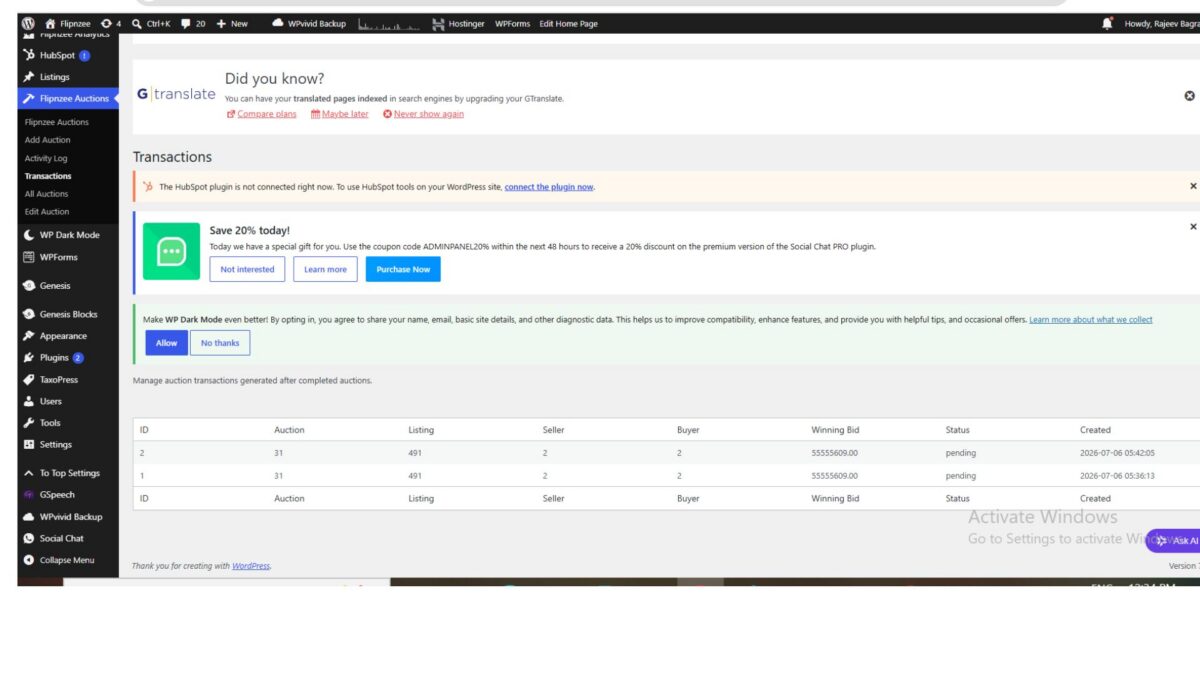
The Transactions page displayed:

  • Transaction ID
  • Auction ID
  • Listing ID
  • Seller
  • Buyer
  • Winning Bid
  • Status
  • Created Date

Every automatically generated transaction appeared successfully.


Result

The Flipnzee Auctions plugin now provides a dedicated Transactions dashboard for administrators.

When an auction ends and a winner is determined, the plugin now has the ability to:

  • Store the transaction
  • Display it inside WordPress
  • Allow administrators to monitor completed sales

This transforms the plugin from simply tracking auctions into managing the entire auction lifecycle.


What We Learned

In this lesson we learned how to:

  • Create a custom WordPress admin page
  • Use WP_List_Table
  • Display custom database records
  • Load transaction history
  • Register new admin submenu pages
  • Build a professional backend interface

Challenges Faced

During implementation we encountered a few issues that are common when building WordPress admin tables:

  • A misplaced method inside prepare_items() caused PHP syntax errors, which were resolved by moving get_table_classes() outside the method while keeping it inside the class.
  • Initially, the Transactions menu did not appear because the new admin file had not been included in the main plugin file.
  • After everything worked, an extra header row appeared at the bottom of the table. This is a cosmetic behavior of the simplified WP_List_Table implementation and does not affect functionality. It will be refined in a future lesson when we enhance sorting, pagination, and table styling.

Working through these issues reinforced the importance of careful class structure, proper file loading, and incremental testing during plugin development.

Download Source Code

Download the starting version of the plugin before the lesson:

Download the completed version after this lesson:


Final Outcome

By the end of Lesson 64, Flipnzee Auctions includes a fully functional Transactions management page that lists all automatically generated auction transactions. This provides administrators with immediate visibility into completed sales and establishes the foundation for future features such as payment integration, invoices, commissions, refunds, transaction status updates, and downloadable reports.
Implementing Lesson 62: Building the Transaction Manager Foundation in Flipnzee Auctions

As the Flipnzee Auctions plugin continues to evolve into a complete online auction marketplace, it becomes increasingly important to organize the code into well-defined components. After completing automatic winner determination in the previous lesson, the next step was to introduce a dedicated Transaction Manager.

Instead of embedding transaction logic directly inside the Auction Manager, this lesson focuses on building the architectural foundation that will eventually support escrow integration, payment processing, ownership transfer, and transaction history.

In this implementation, no visible changes are introduced to the plugin interface. However, significant backend improvements prepare the plugin for future marketplace features.


Why a Transaction Manager?

When an auction ends successfully, several business processes may follow:

  • Creating an escrow transaction
  • Recording payment information
  • Sending buyer and seller notifications
  • Tracking ownership transfer
  • Marking the transaction as completed

Rather than placing all of these responsibilities inside the Auction Manager, it is better to create a dedicated class responsible only for transactions.

This follows the Single Responsibility Principle (SRP) and makes the plugin easier to maintain and extend.


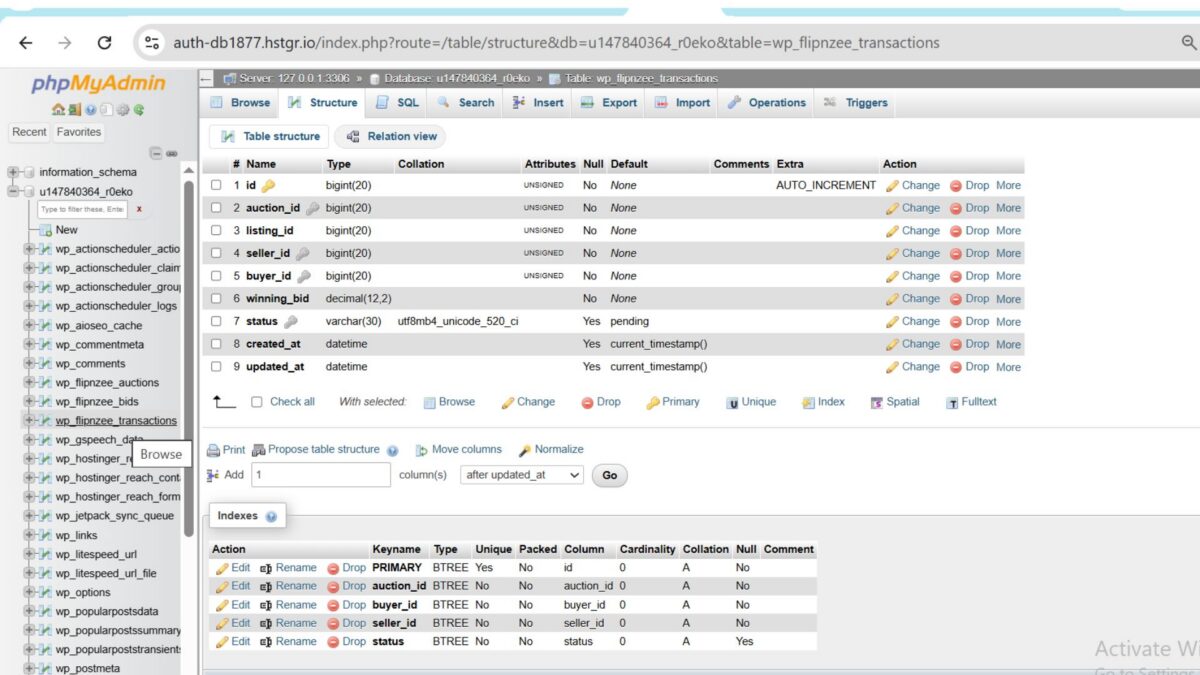
Step 1: Create the Transactions Database Table

The first task was extending the database installer to create a new table.

File modified:

includes/class-database.php

A new table was added:

wp_flipnzee_transactions

using dbDelta().

/*
 * Create transactions table.
 */
$transaction_table = $wpdb->prefix . 'flipnzee_transactions';

$sql = "CREATE TABLE {$transaction_table} (

	id BIGINT UNSIGNED NOT NULL AUTO_INCREMENT,

	auction_id BIGINT UNSIGNED NOT NULL,

	listing_id BIGINT UNSIGNED NOT NULL,

	seller_id BIGINT UNSIGNED NOT NULL,

	buyer_id BIGINT UNSIGNED NOT NULL,

	winning_bid DECIMAL(12,2) NOT NULL,

	status VARCHAR(30) DEFAULT 'pending',

	created_at DATETIME DEFAULT CURRENT_TIMESTAMP,

	updated_at DATETIME DEFAULT CURRENT_TIMESTAMP,

	PRIMARY KEY (id),

	KEY auction_id (auction_id),

	KEY buyer_id (buyer_id),

	KEY seller_id (seller_id),

	KEY status (status)

) {$charset_collate};";

dbDelta( $sql );

After reactivating the plugin, the new database table appeared successfully in phpMyAdmin.


Step 2: Create the Transaction Manager

A brand-new class was introduced.

New file:

includes/class-transaction-manager.php

Initial class structure:

<?php
/**
 * Transaction Manager.
 *
 * @package Flipnzee_Auctions
 */

if ( ! defined( 'ABSPATH' ) ) {
	exit;
}

class Flipnzee_Transaction_Manager {

}

This dedicated class will manage all transaction-related functionality in future lessons.


Step 3: Load the New Class

The main plugin loader was updated to include the new class.

File modified:

flipnzee-auctions.php

Code added:

require_once FLIPNZEE_AUCTION_PATH .
	'includes/class-transaction-manager.php';

This ensures the Transaction Manager is available throughout the plugin.


Step 4: Create Transactions Programmatically

The first functional method was added.

/**
 * Create a transaction.
 *
 * @param array $data Transaction data.
 * @return int|false
 */
public static function create_transaction( $data ) {

	global $wpdb;

	$table = $wpdb->prefix . 'flipnzee_transactions';

	$result = $wpdb->insert(
		$table,
		array(
			'auction_id'  => $data['auction_id'],
			'listing_id'  => $data['listing_id'],
			'seller_id'   => $data['seller_id'],
			'buyer_id'    => $data['buyer_id'],
			'winning_bid' => $data['winning_bid'],
			'status'      => 'pending',
		),
		array(
			'%d',
			'%d',
			'%d',
			'%d',
			'%f',
			'%s',
		)
	);

	if ( false === $result ) {
		return false;
	}

	return $wpdb->insert_id;
}

Although not yet connected to auction completion, this method provides the core functionality for creating marketplace transactions.


Step 5: Retrieve a Transaction

A second method was implemented for retrieving transaction details.

/**
 * Get a transaction.
 *
 * @param int $transaction_id Transaction ID.
 * @return object|null
 */
public static function get_transaction( $transaction_id ) {

	global $wpdb;

	$table = $wpdb->prefix . 'flipnzee_transactions';

	return $wpdb->get_row(
		$wpdb->prepare(
			"SELECT * FROM {$table} WHERE id = %d",
			$transaction_id
		)
	);
}

Keeping database queries inside the Transaction Manager avoids repeating SQL throughout the plugin.


Step 6: Update Transaction Status

Finally, a method was added for updating transaction status.

/**
 * Update transaction status.
 *
 * @param int    $transaction_id Transaction ID.
 * @param string $status         New status.
 * @return bool
 */
public static function update_status(
	$transaction_id,
	$status
) {

	global $wpdb;

	$table = $wpdb->prefix . 'flipnzee_transactions';

	$result = $wpdb->update(
		$table,
		array(
			'status' => sanitize_text_field( $status ),
		),
		array(
			'id' => absint( $transaction_id ),
		),
		array(
			'%s',
		),
		array(
			'%d',
		)
	);

	return false !== $result;
}

This method will later allow the plugin to move transactions through stages such as:

  • Pending
  • Escrow Started
  • Payment Received
  • Ownership Transferred
  • Completed
  • Cancelled

Testing the Implementation

After completing the changes:

  • The plugin activated successfully.
  • No PHP syntax errors were reported.
  • The wp_flipnzee_transactions table was successfully created.
  • The new Transaction Manager loaded correctly.
  • Existing auction functionality remained unaffected.

This confirmed that the new architecture had been integrated without breaking existing features.

Download Source Code

Download the starting version of the plugin before the lesson:

Download the completed version after this lesson:


Lessons Learned

This lesson demonstrates an important software engineering principle:

Build the architecture before building the features.

Although users cannot yet create or view transactions, introducing a dedicated Transaction Manager now will make future development much cleaner.

Future features such as escrow integration, payment gateways, notifications, and transaction history can all be implemented within this class without increasing the complexity of the Auction Manager.


Final Thoughts

Lesson 62 marks an important milestone in the Flipnzee Auctions project. Rather than focusing on user-facing functionality, this lesson strengthens the plugin’s internal architecture by introducing a dedicated Transaction Manager and transaction database table.

As the plugin grows into a full-featured auction marketplace, this modular design will make future enhancements significantly easier to implement, maintain, and extend.

In the next lesson, we will connect the Auction Manager and the Transaction Manager using WordPress action hooks so that a transaction is created automatically whenever an auction winner is determined. This event-driven approach will further improve the plugin’s flexibility and maintainability.

Lesson 61 Implementation: Automatically Determine the Winning Bidder When an Auction Ends

One of the most important milestones in the Flipnzee Auctions project has now been completed. In this lesson, the plugin was enhanced to automatically determine the winning bidder as soon as an auction expires.

Previously, the plugin was already capable of automatically closing expired auctions. However, after the auction was closed, no winner was selected automatically. An administrator would have needed to determine the highest bidder manually.

This lesson bridges that gap and moves the project much closer to becoming a fully functional online auction marketplace.


Objective

The goal of this lesson was to:

  • Detect the highest valid bid after an auction closes.
  • Save the winning bidder in the auction record.
  • Update the final bid amount.
  • Record the event in the Flipnzee Activity Log.
  • Lay the foundation for future escrow integration.

The Problem

The plugin already contained logic that automatically changed an auction’s status from Active to Closed after the auction end time.

However, closing an auction alone is not sufficient.

A complete auction workflow should also:

  • Find the highest bidder.
  • Declare the winner.
  • Store the winner permanently.
  • Prepare the transaction for the next stage.

Without this step, the marketplace cannot proceed to payment or escrow.


Implementation Overview

The implementation consisted of three major improvements.

1. Creating a Winner Selection Method

A new method named determine_winner() was added to the Bid Manager.

Its responsibility is to:

  • Retrieve all bids for an auction.
  • Sort bids by highest amount.
  • Use the earliest bid as the tie-breaker.
  • Save the winning bidder.
  • Update the final bid.
  • Record the event in the activity log.

This centralizes the winner selection logic so it can be reused in future features.


2. Updating the Auction Closing Process

The auction closing routine was modified to perform two operations:

  1. Automatically close expired auctions.
  2. Immediately determine the winner for every auction that was closed.

Before updating auction statuses, the IDs of all expired auctions are collected.

Once the status update completes successfully, the plugin loops through those auction IDs and calls the new winner selection method.

This keeps the code clean while ensuring every expired auction receives a winner automatically.


3. Recording the Winner

After selecting the winning bid, the plugin stores:

  • Winning User ID
  • Final Bid Amount

inside the auction record.

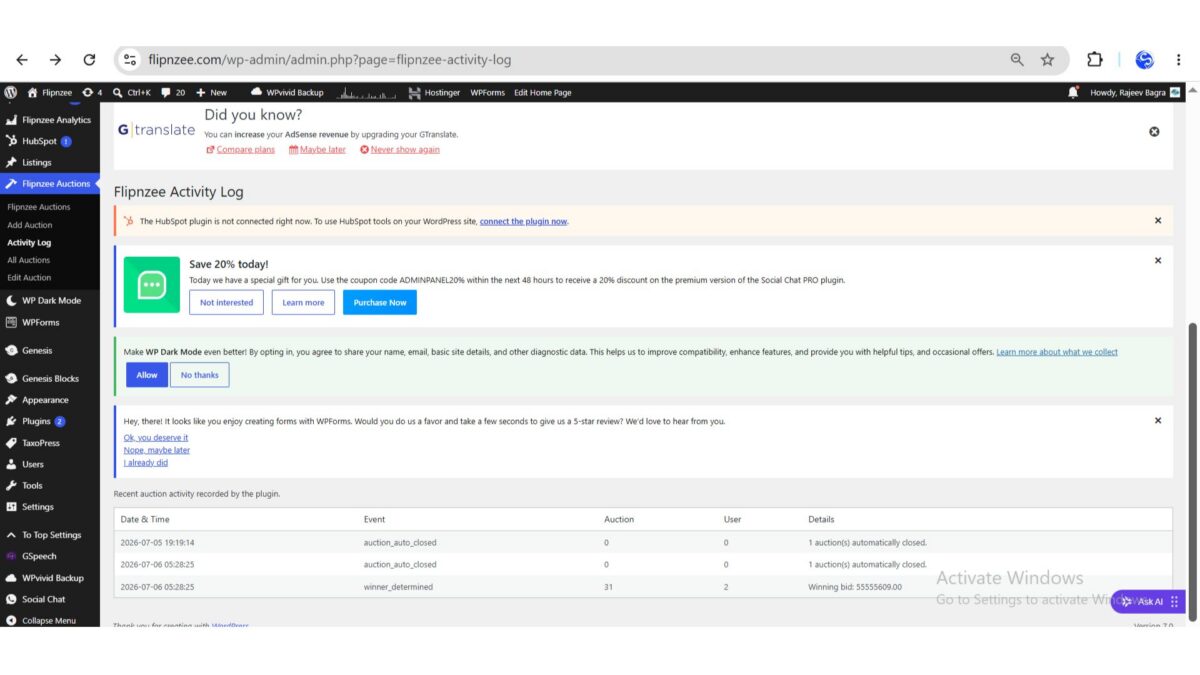
It also records a new activity log entry similar to:

winner_determined
Auction: 31
User: 2
Winning bid: 55555609.00

This creates an audit trail that administrators can review at any time.


Testing the Feature

After uploading the updated plugin:

  • The plugin activated successfully.
  • An auction automatically changed to Closed after expiration.
  • The highest bidder was identified correctly.
  • The winner was saved.
  • A new winner_determined entry appeared in the Activity Log.

This confirmed that the entire workflow executed successfully.


Challenges Faced

During development, one major issue occurred.

The plugin failed to activate because of a PHP parse error caused by an incorrectly placed closing brace inside the admin class.

Using:

php -l admin/class-admin.php

made it possible to quickly identify the syntax issue.

After correcting the misplaced brace and re-uploading the plugin, activation succeeded.

This served as another reminder of the importance of validating PHP files before deployment.


Files Modified

The following files were updated during this lesson:

  • includes/class-bid-manager.php
  • includes/class-auction-manager.php

No database schema changes were required because the necessary fields already existed.


What Was Achieved

By the end of this lesson, the Flipnzee Auctions plugin can now:

  • Automatically close expired auctions.
  • Identify the highest bidder.
  • Resolve ties using the earliest bid.
  • Save the winner in the auction record.
  • Update the final bid amount.
  • Record the event in the Activity Log.

These enhancements significantly improve the automation of the auction lifecycle.


Lessons Learned

Several important development practices were reinforced:

  • Separate business logic into reusable methods.
  • Keep auction closing and winner determination as distinct responsibilities.
  • Always validate PHP files using php -l before deployment.
  • Activity logging is invaluable when testing automated workflows.

Download Source Code

Download the starting version of the plugin before the lesson:

Download the completed version after this lesson:


Looking Ahead

With automatic winner determination now complete, the next stage of development will focus on transforming a completed auction into a real transaction.

Upcoming lessons will introduce:

  • Buyer and seller notifications.
  • Transaction records.
  • Escrow workflow preparation.
  • Payment integration.
  • Marketplace completion.

The project has now moved beyond simply displaying auctions. It is steadily evolving into a complete auction marketplace capable of supporting secure, end-to-end online transactions.

Lesson 60: Parsing Activity Logs into a Professional Admin Table in the Flipnzee Auctions Plugin

As the Flipnzee Auctions plugin continued to evolve, the Activity Log introduced in previous lessons became increasingly useful for tracking important auction events. However, displaying each log entry as a single line made it difficult to scan and understand.

In this lesson, the plugin was enhanced to parse each log entry and display it inside a structured WordPress admin table. This small improvement greatly increases readability and lays the groundwork for advanced features like searching, filtering, exporting, and pagination.


Why Improve the Activity Log?

A plain text log might work for developers, but administrators need information that is easy to understand at a glance.

Instead of displaying this:

[2026-07-05 19:19:14] Event: auction_auto_closed | Auction: 0 | User: 0 | Details: 1 auction(s) automatically closed.

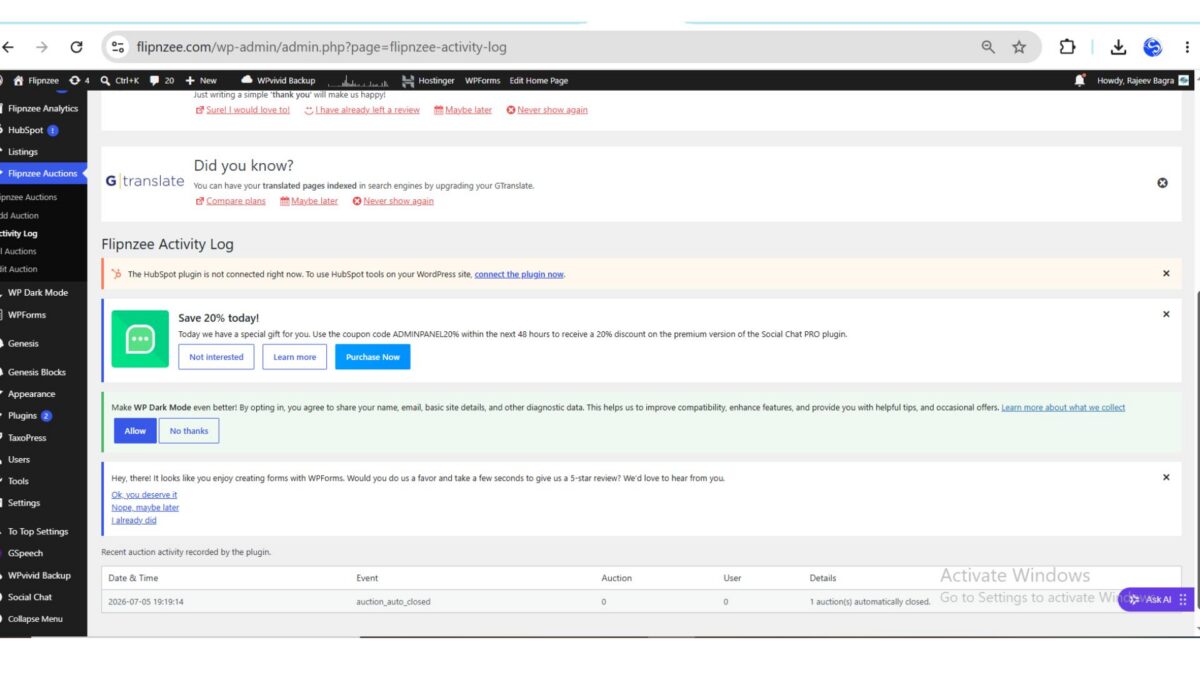
the Activity Log now presents the information in separate columns.

Date & TimeEventAuctionUserDetails
2026-07-05 19:19:14auction_auto_closed001 auction(s) automatically closed.

This makes the history of auction activity much easier to browse.


What Was Implemented

During this lesson, the Activity Log renderer was upgraded to:

  • Read each log entry from the log file
  • Parse the stored text using a regular expression
  • Extract individual values
  • Display the information inside a structured HTML table
  • Continue displaying unknown log formats safely using a fallback

Understanding the Log Format

Every activity recorded by the plugin follows a consistent structure.

Example:

[2026-07-05 19:19:14] Event: auction_auto_closed | Auction: 0 | User: 0 | Details: 1 auction(s) automatically closed.

The parser separates this into five individual fields:

  • Date & Time
  • Event
  • Auction ID
  • User ID
  • Details

Because every log entry follows the same format, PHP can reliably extract the values before displaying them.


Using Regular Expressions

The parser uses PHP’s preg_match() function to identify each section of the log.

Rather than treating the entire line as plain text, it captures the different values individually.

This allows each value to be displayed inside its own table cell.


Creating the Admin Table

Instead of printing one long string, the renderer now creates a table containing:

  • Date & Time
  • Event
  • Auction
  • User
  • Details

Each log entry becomes a separate row.

The result is much cleaner and far easier to read.


Fallback for Unexpected Entries

Not every log file remains perfectly formatted forever.

To prevent errors, the renderer checks whether the regular expression successfully matches the expected format.

If it does, the values are displayed in separate columns.

If not, the original log line is still displayed safely inside a single table row.

This ensures older or unexpected entries never disappear.


Testing the Feature

After updating the plugin:

  1. Upload the latest plugin ZIP.
  2. Activate the plugin.
  3. Open:

Flipnzee Auctions → Activity Log

If log entries already exist, they should automatically appear as structured table rows.


Final Result

The Activity Log is now significantly more useful for administrators.

Instead of reading long text strings, administrators can quickly identify:

  • when something happened,
  • what event occurred,
  • which auction was involved,
  • which user performed the action,
  • and additional details.

This makes troubleshooting and auditing much easier.


What I Learned

This lesson demonstrated how small user interface improvements can dramatically improve usability.

Key concepts covered included:

  • Reading log files
  • Parsing structured text
  • Using PHP regular expressions
  • Displaying dynamic data inside HTML tables
  • Building fallback logic for unexpected input
  • Improving the WordPress admin experience

Download Source Code

Download the starting version of the plugin before the lesson:

Download the completed version after this lesson:


Looking Ahead

With structured activity logs now working, the next logical improvements include:

  • Search within logs
  • Filter events by type
  • Download logs as CSV
  • Pagination for large log files
  • Clear log button
  • Colour-coded event badges
  • Date range filtering

These enhancements will transform the Activity Log into a powerful administration and debugging tool for the Flipnzee Auctions plugin.


Lesson 60 Complete! The Flipnzee Auctions plugin now features a professional, structured Activity Log that presents auction events in an organized table, making plugin administration cleaner, faster, and more user-friendly.

Lesson 59: Building an Activity Log Viewer in the WordPress Admin Dashboard

During the previous lesson, the Flipnzee Auctions plugin gained the ability to record important events such as automatically closing expired auctions. While the log file was successfully written to the server, administrators still needed to open the file manually through the hosting control panel to view it.

In this lesson, the plugin was enhanced with a dedicated Activity Log page inside the WordPress admin dashboard, allowing administrators to view recent activity directly from WordPress.


What We Wanted to Achieve

Instead of navigating to:

wp-content/uploads/flipnzee-logs/activity.log

using a file manager, the goal was to provide an easy-to-access interface under the plugin’s own admin menu.

The desired workflow became:

Flipnzee Auctions
    ├── Dashboard
    ├── Add Auction
    ├── Activity Log
    ├── All Auctions
    └── Edit Auction

Selecting Activity Log would display the contents of the log file inside the WordPress dashboard.


Step 1 – Create a New Admin Page Class

A new file was created:

admin/class-admin-activity-log.php

This class is responsible for:

  • locating the activity log file
  • reading its contents
  • displaying the information inside the WordPress admin area

Separating this functionality into its own class keeps the plugin modular and easier to maintain.


Step 2 – Register the New Class

The new class file was loaded inside the main plugin file.

A conditional require_once statement was added so the class is only included when the file exists.

This follows the same loading pattern used throughout the plugin.


Step 3 – Add a New Submenu

A new submenu was registered inside the existing Flipnzee Auctions menu.

Administrators can now access the log from:

Flipnzee Auctions
→ Activity Log

No additional permissions were required because the page already uses the existing administrator capability.


Step 4 – Create the Page Callback

Inside the admin class, a new callback method was added.

Its only responsibility is to call the renderer from the Activity Log class.

Keeping the controller small makes future maintenance much easier.


Step 5 – Display the Log File

The Activity Log page checks whether the following file exists:

wp-content/uploads/flipnzee-logs/activity.log

If found, the contents are displayed inside a large read-only text area.

If the file does not yet exist, a friendly message is shown instead.


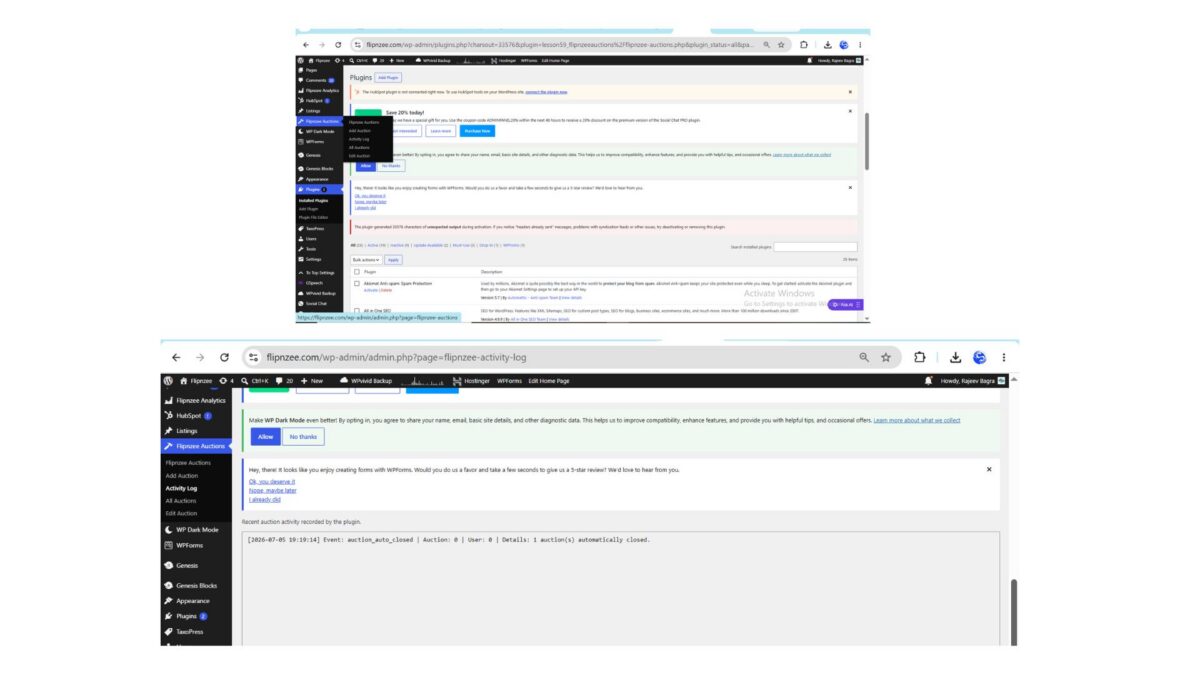
Step 6 – Test the Feature

An auction was allowed to expire automatically.

The maintenance task successfully recorded:

Event: auction_auto_closed

along with the number of auctions processed.

Opening the Activity Log page immediately displayed the newly written entry.

This confirmed that:

  • the scheduled maintenance worked
  • logging worked
  • the admin page successfully read the log file

A Real Debugging Lesson

During implementation, the plugin initially failed to activate.

The server reported:

PHP Parse error:
unexpected token "public"

The problem turned out to be a missing closing brace (}) inside the register_menu() method.

Because the method never ended, PHP interpreted the next function declaration as being inside another function.

After inserting the missing brace:

}

the plugin activated normally.

This was an excellent reminder that many “fatal plugin errors” are caused by simple structural mistakes.


Verifying Syntax Before Uploading

Before uploading the updated plugin, syntax was checked locally using PHP’s built-in linter:

php -l admin/class-admin.php

The result:

No syntax errors detected

Performing this quick validation can save significant debugging time.


Final Result

The plugin now includes a fully integrated Activity Log viewer inside WordPress.

Administrators no longer need to browse server folders or download log files manually.

Recent auction activity is available directly from the dashboard with a single click.

Download Source Code

Download the starting version of the plugin before the lesson:

Download the completed version after this lesson:


What We Learned

In this lesson we learned how to:

  • create a dedicated WordPress admin page
  • organize admin functionality into separate classes
  • register submenu pages
  • display server-generated log files
  • safely include new PHP classes
  • diagnose plugin activation failures
  • use PHP’s syntax checker before deployment
  • integrate logging with an administrator-friendly interface

Tips

  • Keep logging logic separate from display logic.
  • Always validate PHP syntax before uploading a plugin update.
  • Read server error logs whenever a plugin fails to activate.
  • Organize admin pages into dedicated classes instead of placing all code in one file.
  • Simple logging features become invaluable when troubleshooting production websites.

Outcome: The Flipnzee Auctions plugin now provides a built-in Activity Log page that lets administrators monitor important auction events directly from the WordPress dashboard, making debugging and maintenance much more convenient.

Lesson 58 Implementation: Adding a Persistent Activity Logging System to Flipnzee Auctions

In the previous lesson, we introduced WordPress hooks so that other plugins and future Flipnzee components could respond whenever auctions were automatically closed.

In this lesson, we take the next step by building a lightweight activity logging system. Instead of silently processing important events, the plugin now records them in a dedicated log file. This creates an audit trail that helps during debugging, monitoring, and future analytics development.


What We Built

By the end of this lesson, the plugin can:

  • Create a dedicated logging class
  • Automatically create a log directory if it doesn’t exist
  • Create an activity.log file
  • Record important auction events
  • Store timestamps and useful event details
  • Keep logs separate from WordPress debug.log

Example log entry:

[2026-07-05 19:19:14]
Event: auction_auto_closed
Auction: 0
User: 0
Details: 1 auction(s) automatically closed.

Step 1 — Create the Activity Logger

A new file was added:

includes/class-activity-log.php

This class is responsible for:

  • Creating the log directory
  • Creating the log file
  • Formatting log entries
  • Writing entries safely

Instead of scattering error_log() calls throughout the plugin, everything now goes through one reusable class.

Benefits include:

  • Cleaner code
  • Easier maintenance
  • Centralized logging
  • Future extensibility

Step 2 — Load the Logger

The new logger class was loaded inside the main plugin file:

flipnzee-auctions.php

The class is included only if the file exists:

require_once FLIPNZEE_AUCTION_PATH .
    'includes/class-activity-log.php';

This ensures the logger is available everywhere in the plugin.


Step 3 — Record Automatic Auction Closures

Inside:

includes/class-auction-manager.php

The existing method:

update_expired_auctions()

was enhanced.

After expired auctions are closed automatically, the plugin now records a log entry.

Example:

if ( $updated_count > 0 ) {

    Flipnzee_Activity_Log::log(
        'auction_auto_closed',
        0,
        0,
        sprintf(
            '%d auction(s) automatically closed.',
            $updated_count
        )
    );
}

This means activity is only logged when one or more auctions were actually updated.


Step 4 — Store Logs in a Dedicated Folder

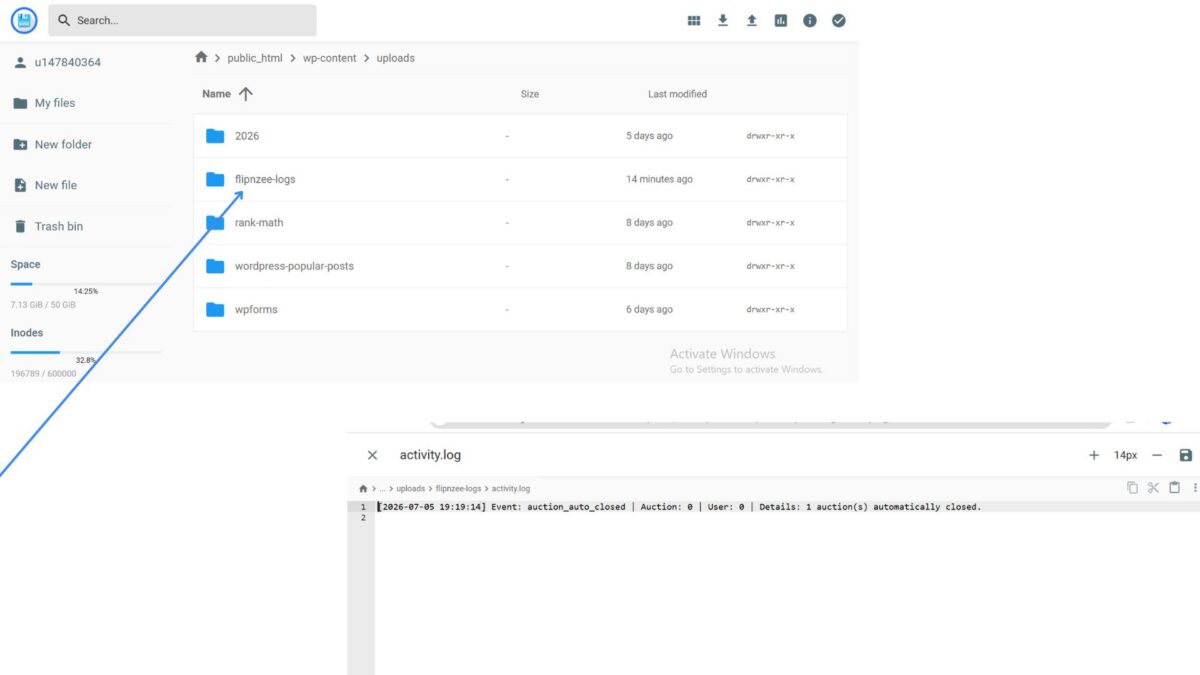
Rather than using WordPress’s global debug log, the plugin now creates its own directory:

wp-content/uploads/
    flipnzee-logs/
        activity.log

Keeping logs separate provides several advantages:

  • Easier troubleshooting
  • Cleaner WordPress debug logs
  • Plugin-specific history
  • Better preparation for future analytics features

Step 5 — Test the Logger

To verify everything worked:

  1. Created an auction that would expire shortly.
  2. Waited for the auction to expire.
  3. Allowed the plugin to automatically close the auction.
  4. Opened the log file on the server.

The log contained:

Event: auction_auto_closed
Details: 1 auction(s) automatically closed.

This confirmed that:

  • automatic expiration worked,
  • the logger executed correctly,
  • and the activity file was successfully written.

Final Result

The Flipnzee Auctions plugin now includes its own lightweight activity logging framework.

Important auction events can now be recorded without relying on WordPress debug logs, making troubleshooting significantly easier during development.

More importantly, this logging infrastructure lays the groundwork for future features such as:

  • administrator activity history
  • bidder activity logs
  • seller notifications
  • email event tracking
  • analytics dashboards
  • security auditing
  • webhook monitoring
  • plugin diagnostics

Download Source Code

Download the starting version of the plugin before the lesson:

Download the completed version after this lesson:


Key Takeaways

During this lesson, we:

  • Created a reusable Flipnzee_Activity_Log class.
  • Loaded the logger through the main plugin bootstrap.
  • Logged automatic auction closures.
  • Stored logs in wp-content/uploads/flipnzee-logs/activity.log.
  • Successfully verified that the logger writes real events to disk.

The Flipnzee Auctions plugin now has a solid foundation for tracking important marketplace activity, making future debugging, reporting, and analytics much easier.

Implementing Automatic Background Auction Maintenance with WP-Cron (Lesson 57)


One of the goals of Flipnzee Auctions is to behave like a professional auction platform rather than simply displaying auction listings.

In previous lessons, I introduced automatic auction lifecycle management and the first public lifecycle hook. Those improvements ensured expired auctions could be processed consistently and future Flipnzee plugins would have a standard way to respond to important auction events.

However, one question remained.

Who should trigger the maintenance?

Until now, expired auctions were primarily processed when visitors viewed auction pages.

In Lesson 57, I completed another important architectural improvement by strengthening the plugin’s background maintenance system using WordPress WP-Cron.


Discovering That the Foundation Already Existed

When we began the lesson, our first instinct was to implement WP-Cron from scratch.

Instead of immediately writing new code, we reviewed the plugin architecture.

That proved to be the right decision.

The plugin already contained:

  • Plugin activation scheduling
  • Plugin deactivation cleanup
  • A scheduled maintenance event
  • A maintenance callback

Rather than replacing working code, we decided to improve what was already there.

This is an important lesson in software development.

Good developers don’t rewrite functioning code unnecessarily—they build upon it.


Reviewing the Existing Scheduler

Inside the main plugin file, I confirmed that the plugin already scheduled a recurring maintenance event during activation.

The scheduler also checked whether the event already existed before registering it.

This prevents duplicate scheduled events.

Likewise, the plugin correctly removes the scheduled event during deactivation, ensuring WordPress isn’t left with orphaned scheduled tasks.

Since both pieces already followed WordPress best practices, no changes were required.


Examining Scheduled Maintenance

The next step was reviewing the maintenance callback inside the Auction Manager.

The method already delegated work to dedicated lifecycle methods rather than placing all logic inside one large function.

That immediately indicated the plugin was already moving toward a clean, modular architecture.

Instead of rewriting the callback, we looked for opportunities to improve code reuse.


Eliminating Multiple Lifecycle Paths

During the review we noticed something subtle.

Visitor-triggered processing and scheduled processing were following different internal code paths.

Although both ultimately closed expired auctions, they did not necessarily execute the exact same lifecycle.

That creates maintenance challenges because future improvements might accidentally be added to one path but not the other.

Instead of maintaining two separate implementations, we decided both visitor requests and scheduled maintenance should reuse the same business logic.


Reusing the Lifecycle Manager

The scheduled maintenance callback originally invoked a dedicated expiry method.

We replaced that call with the centralized lifecycle method introduced in Lesson 55.

self::update_expired_auctions();

Although the code change was very small, the architectural improvement was significant.

Now every path that closes expired auctions uses the same method.

That means:

  • the same database updates
  • the same lifecycle processing
  • the same WordPress hook introduced in Lesson 56
  • the same future integrations

Whether maintenance is triggered by a visitor or by WP-Cron, the plugin now behaves consistently.


Why Centralization Matters

Software becomes increasingly difficult to maintain when identical business logic exists in multiple places.

Suppose future versions introduce:

  • winner notifications
  • seller notifications
  • marketplace analytics
  • audit logs
  • cache refreshing

If two expiry methods existed, every enhancement would have to be implemented twice.

By centralizing the lifecycle, improvements only need to be made once.

This follows one of the most important software engineering principles:

Don’t Repeat Yourself (DRY).


An Unexpected Debugging Lesson

During implementation I briefly encountered a PHP parse error reporting:

Unexpected token "public"

At first glance, it appeared the new lifecycle code had introduced a syntax problem.

After carefully reviewing the implementation, however, we discovered something much simpler.

The file hadn’t been saved before running the PHP syntax checker.

Once the file was saved, the syntax validation completed successfully.

Although it was a small oversight, it reinforced an important development habit:

Whenever syntax errors appear unexpectedly, always verify that the latest changes have actually been saved before beginning deeper debugging.


Testing the Changes

After completing the implementation, I verified that the plugin continued to function correctly.

An auction nearing its end time was allowed to expire naturally.

Once maintenance processed the auction:

  • the auction status changed automatically
  • the countdown disappeared
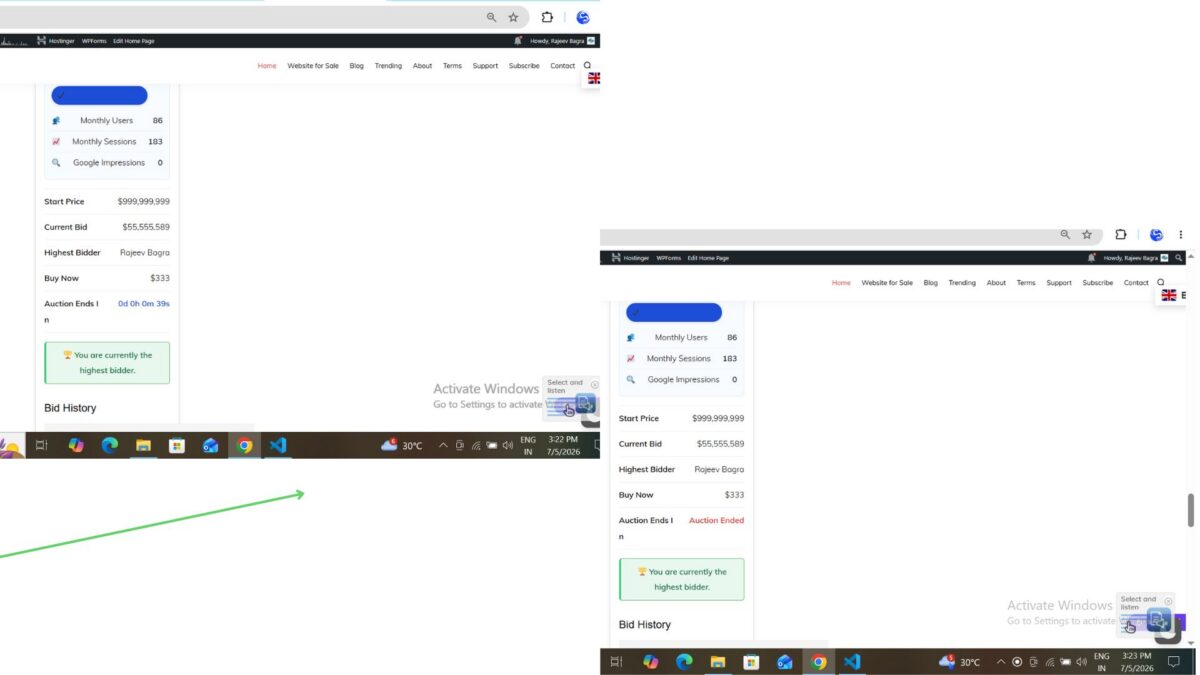
  • the “Auction Ended” status appeared
  • bid history remained available
  • the winning bidder remained correctly displayed

The scheduled maintenance architecture continued working as expected while now sharing the same centralized lifecycle processing.


What This Means for Flipnzee Analytics

One of the long-term goals of the Flipnzee ecosystem is allowing multiple plugins to work together without directly depending on each other.

Because Lesson 56 introduced the public lifecycle hook, and Lesson 57 ensures every maintenance path passes through the same lifecycle manager, future integrations become much easier.

Eventually Flipnzee Analytics will be able to respond whenever auctions are automatically processed without requiring any modifications to the Auctions plugin itself.

This is exactly the loose coupling we have been aiming for since the beginning of the project.


Lessons Learned

This lesson wasn’t about writing a large amount of code.

Instead, it focused on improving architecture.

By reviewing the existing implementation before making changes, we avoided unnecessary duplication and strengthened the plugin using the code that was already in place.

Sometimes the best improvement is not adding more code, but making existing code more consistent, reusable, and maintainable.

Download Source Code

Download the starting version of the plugin before the lesson:

Download the completed version after this lesson:


Looking Ahead

With automated background maintenance now using the centralized lifecycle manager, the Flipnzee platform is well prepared for future enhancements such as:

  • automatic winner notifications
  • seller notifications
  • analytics synchronization
  • scheduled reminder emails
  • activity logging
  • marketplace statistics

Each of these features can now build upon the same lifecycle without introducing duplicate logic.


Conclusion

Lesson 57 completed another important milestone in the evolution of Flipnzee Auctions.

Rather than relying on multiple maintenance paths, the plugin now processes auction expiry through a single centralized lifecycle manager that is shared by both visitor-triggered requests and scheduled WP-Cron maintenance.

Although the code changes were relatively small, the architectural benefits are substantial.

The plugin is now more consistent, easier to maintain, and better prepared for future integration with Flipnzee Analytics and the broader Flipnzee ecosystem.

Implementing a Hook-Based Auction Lifecycle in Flipnzee Auctions (Lesson 56)

One of the biggest strengths of WordPress is its hook system. Actions and filters allow plugins to communicate with each other without becoming tightly coupled.

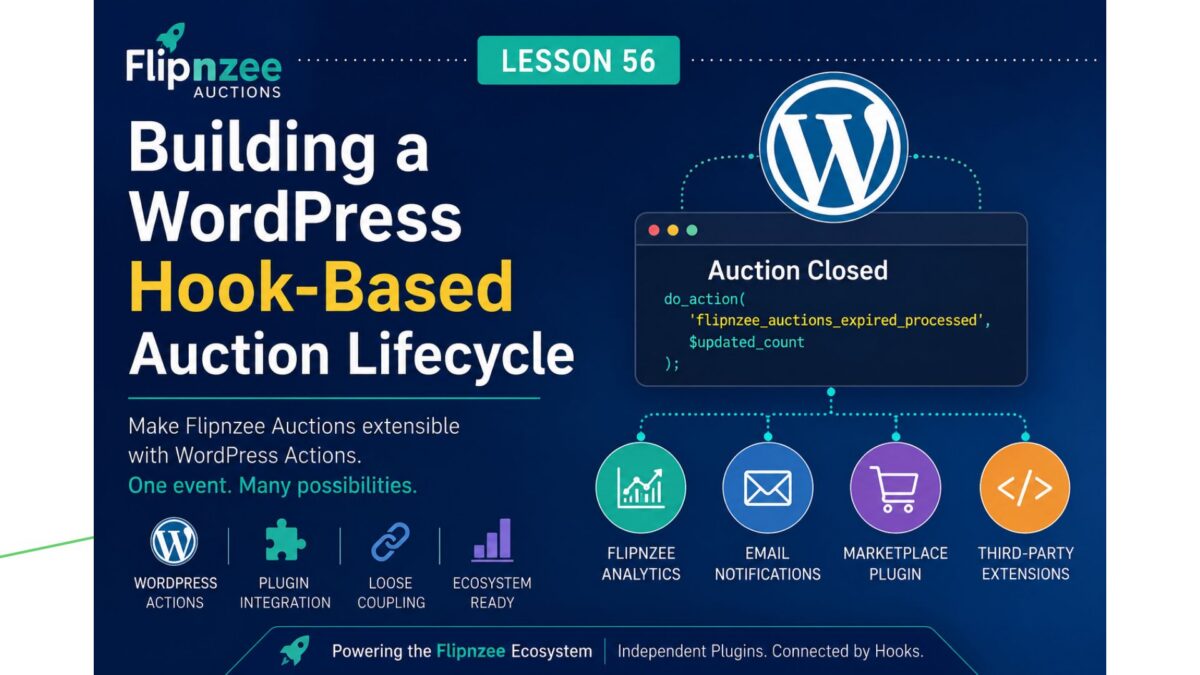
In Lesson 56, I took another important architectural step in the development of Flipnzee Auctions by introducing the plugin’s first public lifecycle hook.

Although this lesson adds no visible frontend features, it lays the foundation for future integrations with Flipnzee Analytics and other Flipnzee plugins.


Why This Lesson Was Needed

In Lesson 55, I implemented Automatic Auction Lifecycle Management.

Whenever active auctions are retrieved, the plugin now automatically checks for expired auctions and updates their status from Active to Closed.

The feature worked perfectly.

However, there was one limitation.

Only the Auction Manager knew that an auction had been closed.

No other plugin had any way of knowing that an important event had just occurred.

As the Flipnzee ecosystem grows, this would become a problem.


Thinking Beyond a Single Plugin

Although Flipnzee Auctions and Flipnzee Analytics are separate plugins, they have always been designed to complement each other.

For example, when an auction closes, future versions of Flipnzee Analytics might want to:

  • Update marketplace statistics.
  • Refresh dashboard widgets.
  • Record lifecycle events.
  • Generate reports.
  • Trigger conversion tracking.

Without a proper communication mechanism, Analytics would have to modify the Auctions plugin directly.

That isn’t good software architecture.

Instead, the Auctions plugin should simply announce that something has happened and allow any interested plugin to respond.

This is exactly what WordPress Actions were designed to do.


Understanding WordPress Actions

A WordPress Action works like an announcement.

Instead of calling another plugin directly, the Auctions plugin simply says:

“I’ve finished processing expired auctions.”

Any plugin that is interested can choose to listen.

If no plugin is listening, nothing happens.

This keeps every plugin independent while still allowing them to work together.


Creating the First Flipnzee Lifecycle Event

Inside the update_expired_auctions() method, I first stored the update result in a variable.

$updated_count = ( false === $result ) ? 0 : (int) $result;

Rather than immediately returning the value, I introduced the plugin’s first public action.

do_action(
    'flipnzee_auctions_expired_processed',
    $updated_count
);

Finally, the method returns the number of auctions that were updated.

return $updated_count;

This small change transformed the method from simply updating the database into publishing an event that other plugins can respond to.


Why Use an Intermediate Variable?

Previously, the method ended like this:

return ( false === $result ) ? 0 : (int) $result;

That worked perfectly.

However, since the update count now needs to be passed to the action, storing it in a variable makes the code much clearer.

The same value is now:

  • passed to the WordPress Action
  • returned to the calling method

without repeating the calculation.


Improving the Documentation

Since this hook is intended for other developers, I also expanded its documentation.

Instead of simply stating that expired auctions had been processed, the comment now explains:

  • why the hook exists
  • when it fires
  • the parameter it passes
  • examples of how future plugins might use it

Good documentation is especially important for public hooks because they become part of the plugin’s public API.


An Architectural Decision

During implementation, we briefly considered adding a listener inside the Auctions plugin itself using:

add_action(
    'flipnzee_auctions_expired_processed',
    ...
);

The purpose would have been to demonstrate how the hook worked.

After reviewing the architecture, however, we decided against it.

Adding a listener that only writes to the error log would introduce demonstration code into the production plugin without providing any real functionality.

Instead, we chose to keep the plugin clean.

The hook now exists and is fully documented.

Future plugins can use it whenever they genuinely need to respond to the auction lifecycle.

I believe this results in a much cleaner and more professional design.


Preparing the Flipnzee Ecosystem

One of the goals of the Flipnzee Platform is allowing independent plugins to work together without directly depending on each other.

This hook is the first step toward that vision.

Future plugins may simply register their own listeners.

For example:

add_action(
    'flipnzee_auctions_expired_processed',
    'my_custom_function'
);

The Auctions plugin doesn’t need to know anything about that plugin.

Likewise, the Analytics plugin doesn’t need to modify the Auctions plugin.

Each plugin remains independent while communicating through WordPress itself.


Testing the Implementation

Since this lesson focused on architecture rather than frontend functionality, testing was straightforward.

After implementing the new hook:

  • The plugin passed PHP syntax validation.
  • Automatic auction expiry continued to function exactly as before.
  • Existing functionality remained unaffected.
  • The new lifecycle event is now available for future integrations.

Because no listeners are currently registered, introducing the hook does not change the behaviour of the plugin.

Instead, it quietly prepares the foundation for future development.


Lessons Learned

This lesson reminded me that professional software development isn’t always about adding visible features.

Sometimes the most valuable improvements are architectural.

By introducing a public lifecycle event, the plugin has become significantly more extensible without increasing complexity.

Future features such as analytics updates, email notifications, activity logging, and marketplace statistics can all be built on top of this single hook.


Looking Ahead

With the first lifecycle event now in place, the plugin is ready for even greater automation.

The next logical step is to ensure auction maintenance happens automatically in the background using WordPress scheduling, rather than only when visitors load auction pages.

That will allow the lifecycle events introduced in this lesson to fire regardless of whether anyone is currently browsing the website.

Download Source Code

Download the starting version of the plugin before the lesson:

Download the completed version after this lesson:


Conclusion

Lesson 56 introduced the first public WordPress Action in Flipnzee Auctions.

Although visitors won’t notice any visual changes, this small addition represents an important architectural milestone.

The plugin now follows a more event-driven design, making it easier for Flipnzee Analytics and future plugins to integrate cleanly without modifying the core Auctions plugin.

As the Flipnzee Platform continues to grow, these well-documented hooks will become the foundation that allows multiple plugins to work together while remaining independent, maintainable, and true to WordPress development best practices.

Implementing Automatic Auction Lifecycle Management in Flipnzee Auctions (Lesson 55)


In the previous lesson, we improved the frontend by ensuring manually closed auctions no longer displayed a misleading countdown timer. However, there was still an important piece missing from the auction lifecycle.

Although an auction could reach its end time, its status in the database would remain Active until an administrator manually changed it. This meant the plugin’s stored data didn’t always reflect the true state of the auction.

In this lesson, I implemented Automatic Auction Lifecycle Management, allowing the plugin to automatically detect expired auctions and update their status to Closed.

This may seem like a small enhancement, but it significantly improves the reliability and architecture of the plugin.


The Problem

Before this lesson, an auction could look like this in the database:

StatusAuction End
ActiveYesterday

Although the auction had already expired, its status remained Active until someone manually edited it.

As the plugin grows, relying on manual updates becomes impractical. Features such as winner notifications, analytics, and scheduled processing all depend on accurate auction statuses.


Designing the Solution

Rather than placing the expiry logic inside the frontend or scattering it across multiple files, we decided to keep all lifecycle management inside the Auction Manager.

This follows one of the fundamental principles of object-oriented programming:

Business logic belongs in the manager classes, while presentation classes should focus only on displaying information.


Creating a Dedicated Lifecycle Method

The first step was creating a new method inside includes/class-auction-manager.php.

public static function update_expired_auctions()

Its responsibility is straightforward:

  • Find auctions that are still marked as Active.
  • Compare their end date and time with the current WordPress time.
  • Update only those auctions whose expiry time has already passed.

Keeping this functionality in a dedicated method makes it reusable throughout the plugin.


Letting the Database Do the Work

Instead of retrieving every auction and checking them individually in PHP, we allowed MySQL to perform the update directly.

$result = $wpdb->query(
    $wpdb->prepare(
        "
        UPDATE {$table}
        SET status = %s
        WHERE status = %s
          AND auction_end < %s
        ",
        'closed',
        'active',
        current_time( 'mysql' )
    )
);

This approach is far more efficient because the database updates all matching auctions in a single query.

We also used:

current_time( 'mysql' )

instead of PHP’s date() function so that the comparison respects the timezone configured in WordPress.


Our First Implementation

Initially, I called the new method directly inside the auction shortcode.

Flipnzee_Auction_Manager::update_expired_auctions();

$auctions = Flipnzee_Auction_Manager::get_active_auctions();

The feature worked correctly.

However, after reviewing the architecture, we realised the shortcode had started doing more than simply displaying auctions.


Refactoring for Better Architecture

The shortcode was now responsible for two different tasks:

  • Updating auction statuses.
  • Displaying auction listings.

Although functional, this wasn’t the cleanest design.

Instead, we moved the lifecycle processing into the Auction Manager itself.

Inside get_active_auctions() we added:

self::update_expired_auctions();

The shortcode then became much cleaner.

$auctions = Flipnzee_Auction_Manager::get_active_auctions();

Now the shortcode simply requests active auctions, while the Auction Manager ensures that the returned data is already accurate.


Why This Refactoring Matters

This small architectural improvement keeps responsibilities clearly separated.

Auction Manager

Responsible for:

  • Auction lifecycle
  • Business rules
  • Database operations
  • Retrieving auction data

Shortcode Class

Responsible for:

  • Displaying auction information
  • Rendering HTML
  • User interface

Separating responsibilities like this makes future maintenance much easier.


Testing the Feature

After completing the implementation, I carried out a real-world test instead of relying only on syntax validation.

First, I confirmed that the WordPress site was configured to use the Kolkata timezone under Settings → General.

I then created an auction with an expiry time a few minutes in the future.

Once the end time was reached, I refreshed the auction page.

The results were exactly as expected:

  • The auction automatically transitioned from Active to Closed.
  • The countdown was replaced with the Auction Ended notice.
  • No manual status update was required.

This confirmed that the automatic lifecycle management works correctly with the site’s configured WordPress timezone.


Lessons Learned

One of the biggest takeaways from this lesson was that good software isn’t just about making features work—it’s about placing responsibilities in the right classes.

The feature functioned correctly in its initial form, but moving the lifecycle processing into the Auction Manager resulted in a cleaner and more maintainable architecture.

Small refactorings like this become increasingly valuable as a project grows.


Looking Ahead

This lesson also supports the long-term vision for the Flipnzee Platform.

Although Flipnzee Auctions and Flipnzee Analytics are separate plugins, they are designed to complement each other. Keeping auction lifecycle management centralized provides a solid foundation for future integrations, including:

  • Winner notifications
  • Scheduled background processing
  • Marketplace statistics
  • Analytics events
  • Dashboard updates

Building this foundation now will make future lessons much easier to implement.

Download Source Code

Download the starting version of the plugin before the lesson:

Download the completed version after this lesson:


Conclusion

Lesson 55 introduced automatic auction lifecycle management to the Flipnzee Auctions plugin.

Expired auctions now automatically transition from Active to Closed, keeping the database synchronized with real-world auction activity.

Just as importantly, this lesson reinforced the architectural principles that guide the project: business logic belongs in manager classes, presentation classes should remain focused on the user interface, and each improvement should prepare the plugin for future growth.

With Lesson 55 complete, Flipnzee Auctions has become more reliable, easier to maintain, and better prepared for the next stage of development.

Lesson 54: Handling Manually Closed Auctions Correctly in Flipnzee Auctions

While developing the Flipnzee Auctions plugin, an interesting edge case was discovered. Auctions that were manually marked as Closed from the admin dashboard continued to display a live countdown timer on the frontend. Although bidding was no longer possible, visitors still saw that the auction had many days remaining.

In this lesson, the auction display was updated so that manually closed auctions are presented consistently throughout the website.


The Problem

Initially, the auction countdown relied only on the auction end date.

The logic was similar to this:

$current_time >= strtotime( $auction['auction_end'] )

This worked perfectly when an auction naturally expired, but it ignored the auction status stored in the database.

As a result:

  • the auction card displayed a red Auction Ended badge,
  • the bidding form was disabled,
  • yet the countdown still showed something like:
Auction Ends In

41d 2h 53m

This created conflicting information for visitors.


Understanding the Cause

Each auction stores a status in the database.

Typical values include:

  • draft
  • active
  • closed

When an administrator manually closes an auction, the status changes to:

closed

However, the auction end date remains unchanged because the scheduled end date is still stored for historical purposes.

Therefore, relying only on the end date was not enough.


Updating the Auction Logic

The auction is now considered closed if either of the following conditions is true:

  • the auction status is closed, or
  • the scheduled end date has already passed.

The logic now looks like this:

$auction_closed =
(
    'closed' === $auction['status']
)
||
(
    current_time( 'timestamp' ) >=
    strtotime( $auction['auction_end'] )
);

This allows the plugin to distinguish between an auction that is still active and one that has been manually closed.


Improving the Frontend Display

Previously, every auction displayed the countdown row.

Auction Ends In
Loading...

This has now been replaced with conditional output.

For manually closed auctions the visitor now sees:

Auction Status
Auction Ended

For active auctions the countdown remains unchanged.

Auction Ends In
12d 05h 18m

This makes the interface much clearer.


Preserving Winner Information

During implementation another issue was discovered.

While testing, the code responsible for retrieving the winning bid had accidentally been commented out.

Because of that:

  • the Winner section disappeared,
  • the plugin incorrectly displayed “No bids were placed.” even when several bids existed.

Restoring the following code resolved the problem:

$winning_bid = Flipnzee_Bid_Manager::get_winning_bid(
    $auction['id']
);

After restoring it:

  • Winner information appeared correctly.
  • Winning bid amount was displayed.
  • Bid history continued to work.
  • Closed auctions correctly showed their final results.

Final Behaviour

The auction system now behaves consistently.

Active Auction

  • Live countdown displayed
  • Bidding enabled
  • Highest bidder shown
  • Bid history available

Naturally Expired Auction

  • Auction Ended shown
  • Winner displayed
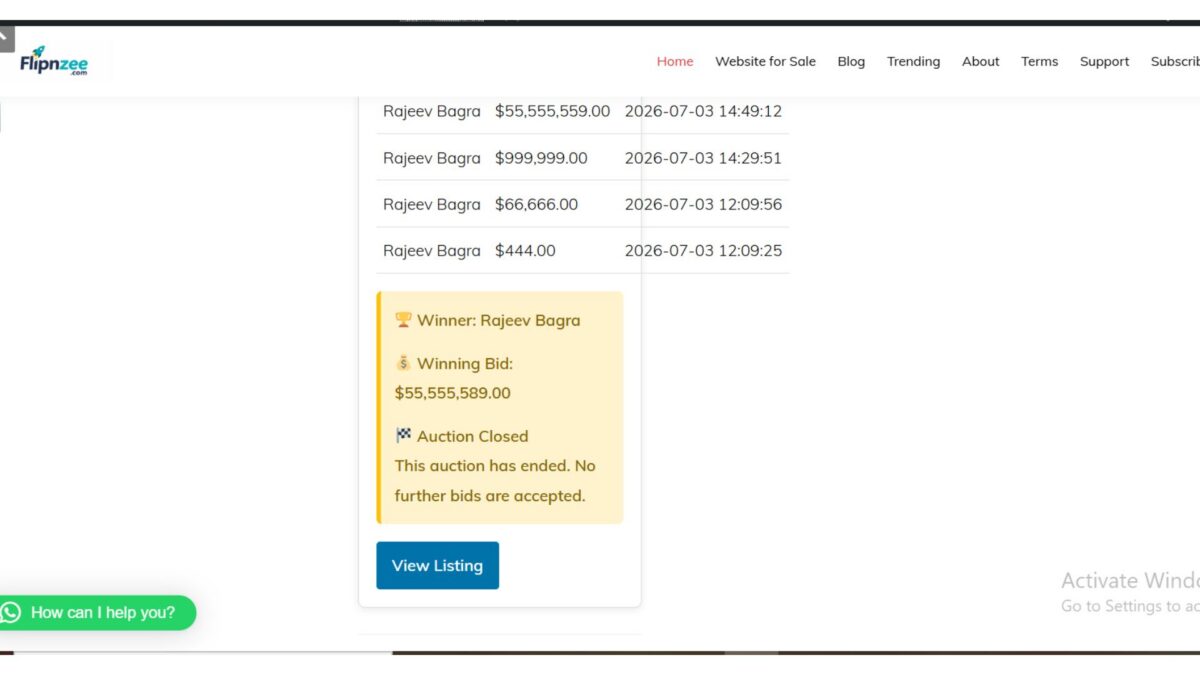
  • Winning bid displayed
  • No further bids accepted

Manually Closed Auction

  • Auction Status → Auction Ended
  • Winner displayed (if bids exist)
  • Winning bid displayed
  • Bid history preserved
  • No misleading countdown shown

Lessons Learned

This implementation highlighted an important development principle.

A date alone should not always determine the state of an application. When a dedicated status field exists in the database, both the status and the timestamp should be considered before deciding how information is presented to users.

Handling these edge cases makes the auction system more reliable and provides a better experience for both buyers and sellers.


Download Source Code

Download the starting version of the plugin before the lesson:

Download the completed version after this lesson:


Conclusion

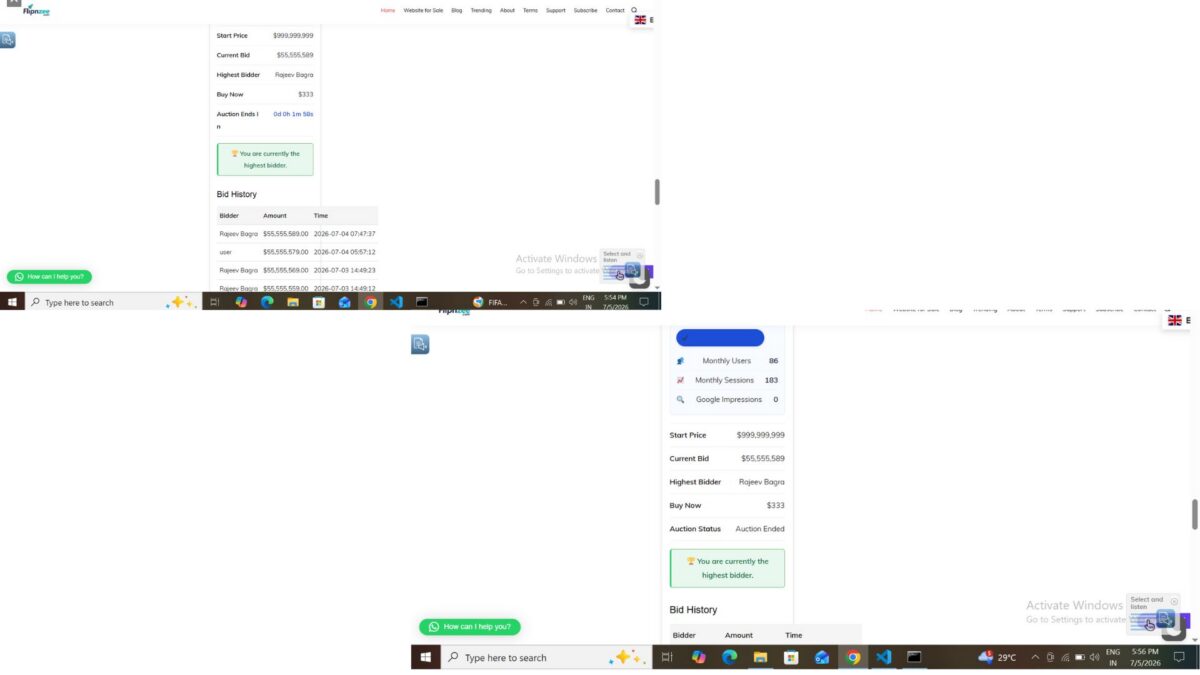
With this improvement, Flipnzee Auctions now correctly handles manually closed auctions while preserving auction history, winner information, and bid history. Visitors receive clear and accurate information regardless of whether an auction ended naturally or was closed early by an administrator, making the plugin more robust and professional.