Lesson 53 Implementation: Prevent Duplicate Auctions by Enforcing One Auction Per Listing


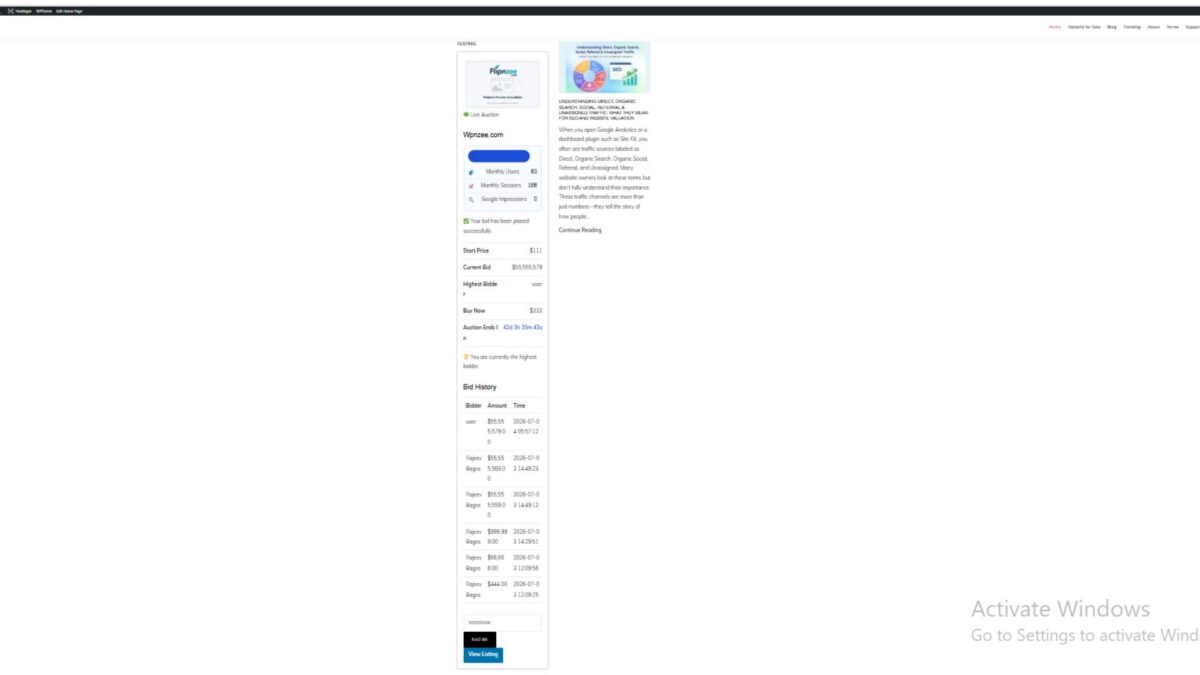
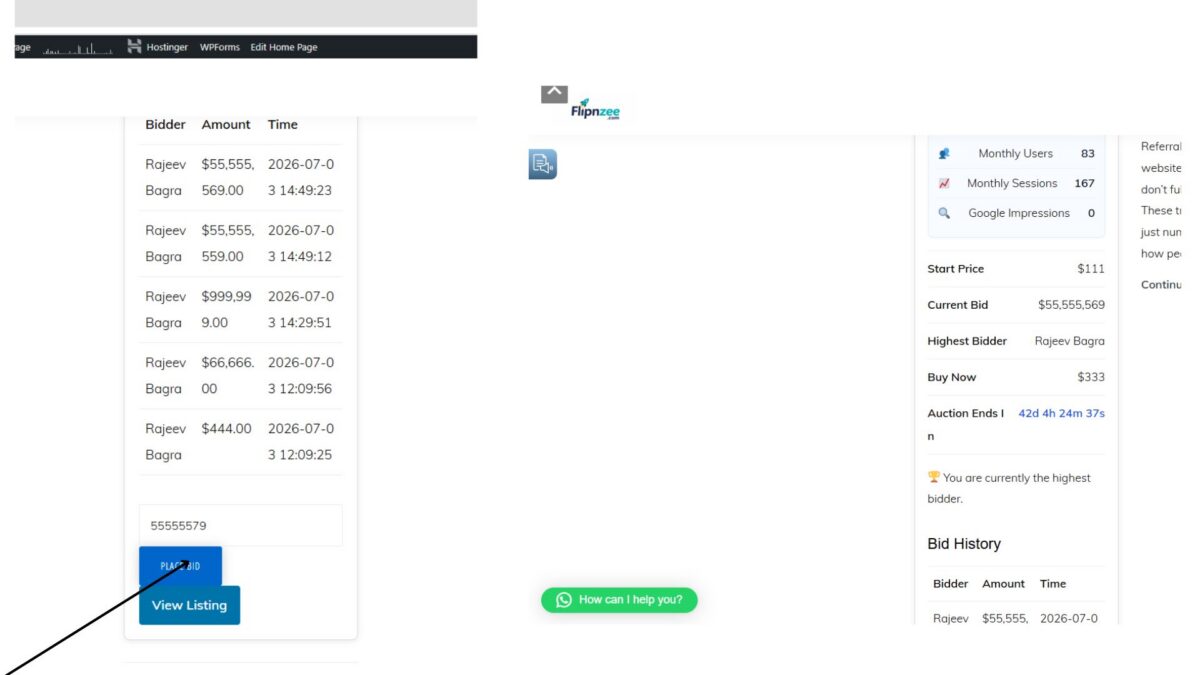
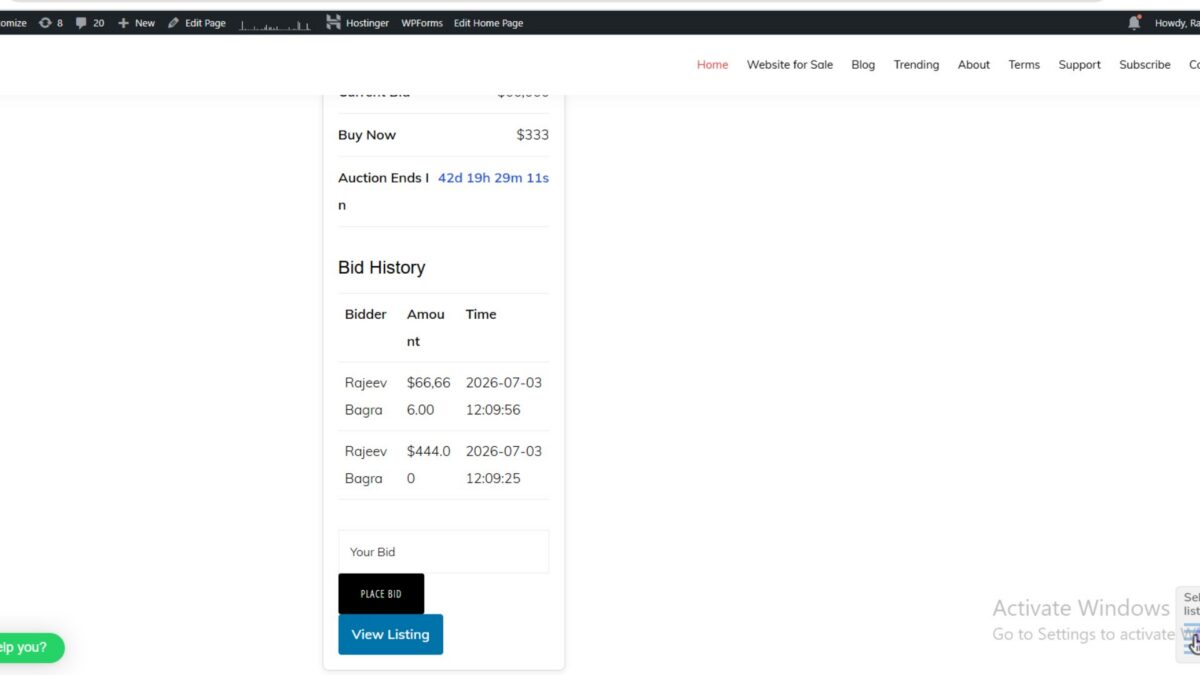
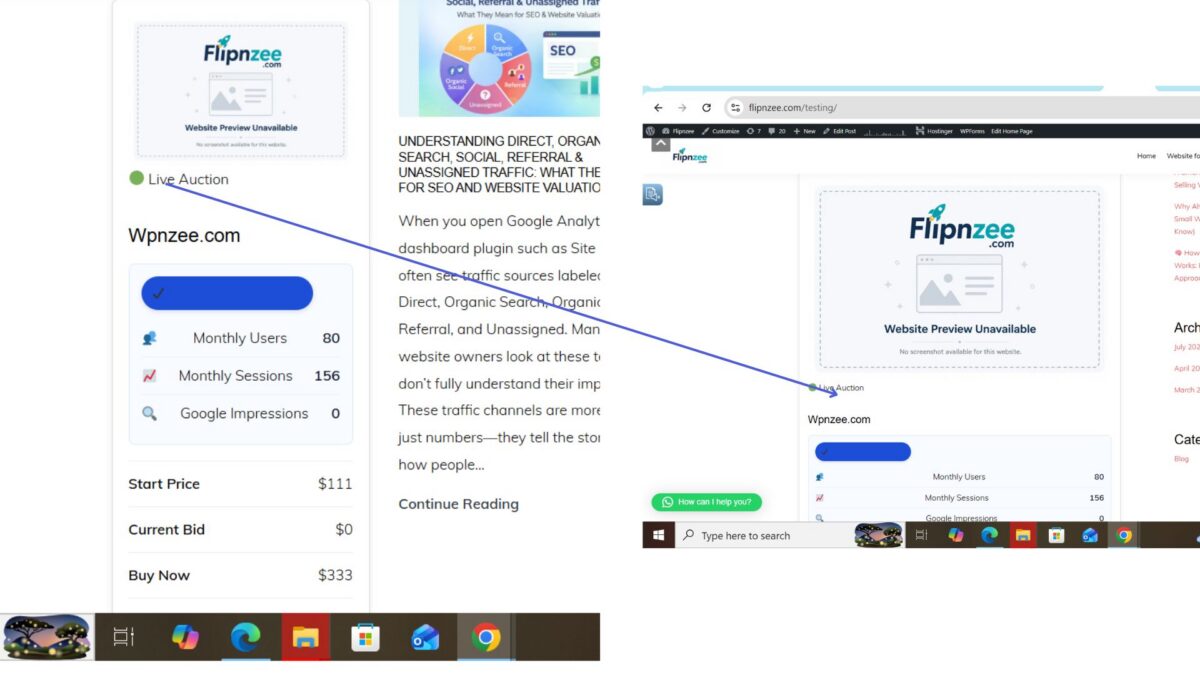
As the Flipnzee Auctions plugin matured, an important database design issue became apparent. During testing, it was possible to create multiple auction records for the same listing. While acceptable during development, this behaviour could lead to incorrect auction displays, duplicated auction cards, and confusion when retrieving bid history.

In this lesson, we improved the auction creation process by enforcing a simple but important rule:

One listing can have only one auction.

Instead of creating duplicate auction records, the plugin now updates the existing auction whenever the administrator attempts to create another auction for the same listing.


The Problem

Originally, every time an auction was created, a new database record was inserted.

For example:

Listing ID 491

Auction #25
Auction #26
Auction #27
Auction #31

Although only one auction should exist for the listing, several records accumulated during development.

This caused problems such as:

  • Multiple auction cards appearing.
  • Incorrect auction selected by frontend queries.
  • Bid history associated with different auction IDs.
  • Difficult database maintenance.

Step 1: Check Whether an Auction Already Exists

Inside:

includes/class-auction-manager.php

Locate:

public static function create_auction()

Immediately after defining the database table, retrieve any existing auction for the current listing.

$existing_auction = $wpdb->get_var(
	$wpdb->prepare(
		"SELECT id
		FROM {$table}
		WHERE listing_id = %d
		LIMIT 1",
		$listing_id
	)
);

If an auction already exists, the plugin now knows its auction ID before attempting to insert another record.


Step 2: Update Instead of Insert

Previously, the function always continued directly to:

$wpdb->insert(

Instead, we added:

if ( $existing_auction ) {

	self::update_auction(
		$existing_auction,
		$listing_id,
		$start_price,
		$reserve_price,
		$buy_now_price,
		'active',
		$auction_start,
		$auction_end
	);

	return $existing_auction;
}

This means:

  • Existing auction found → update it.
  • No auction found → create a brand-new auction.

Step 3: Keep Existing Insert Logic

If no auction exists, the original insert code continues to run unchanged.

$result = $wpdb->insert(
	$table,
	array(
		'listing_id'    => $listing_id,
		'start_price'   => $start_price,
		'reserve_price' => $reserve_price,
		'buy_now_price' => $buy_now_price,
		'status'        => 'active',
		'auction_start' => $auction_start,
		'auction_end'   => $auction_end,
	),
	array(
		'%d',
		'%f',
		'%f',
		'%f',
		'%s',
		'%s',
		'%s',
	)
);

No further changes were required.


Why Return the Existing Auction ID?

The create_auction() method was originally designed to return the auction ID.

Returning:

true

would change the method’s behaviour and could break other parts of the plugin.

Instead, after successfully updating an existing auction, we return:

return $existing_auction;

This preserves the original method contract and keeps the plugin consistent.


Testing

To verify the implementation:

  1. Edit an existing listing.
  2. Create (or recreate) its auction.
  3. Save the auction.
  4. Check the Auctions table.

Expected behaviour:

  • No new auction record is created.
  • The existing auction is updated.
  • The auction ID remains unchanged.
  • Auction dates and prices are refreshed successfully.

Testing confirmed that the plugin now updates the existing auction instead of creating duplicates.


Development Observation

While testing, previously created development records remained in the database.

For example:

Listing ID 491

Auction #25 (closed)
Auction #26 (closed)
Auction #27 (closed)
Auction #31 (active)

These historical records were created before this lesson was implemented.

Because Lesson 53 prevents future duplicate creation, a clean database (or removal of old development records) ensures that each listing has only one associated auction going forward.


What We Learned

This lesson demonstrated an important database design principle:

Prevent duplicate data instead of fixing it later.

By checking for an existing auction before inserting a new one, the plugin now enforces a one-to-one relationship between listings and auctions. This keeps the database cleaner, simplifies frontend queries, and ensures that auction history and bid data remain associated with the correct auction record.

Download Source Code

Download the starting version of the plugin before the lesson:

Download the completed version after this lesson:


Final Thoughts

Although the implementation itself was straightforward, it significantly improved the overall architecture of the Flipnzee Auctions plugin. Preventing duplicate auctions not only reduces database clutter but also lays a stronger foundation for future features such as auction archives, winner announcements, relisting, and auction history. From this point onward, each listing is managed through a single auction record, making the system more reliable and easier to maintain.
Lesson 51 Implementation: Automatically Closing Expired Auctions

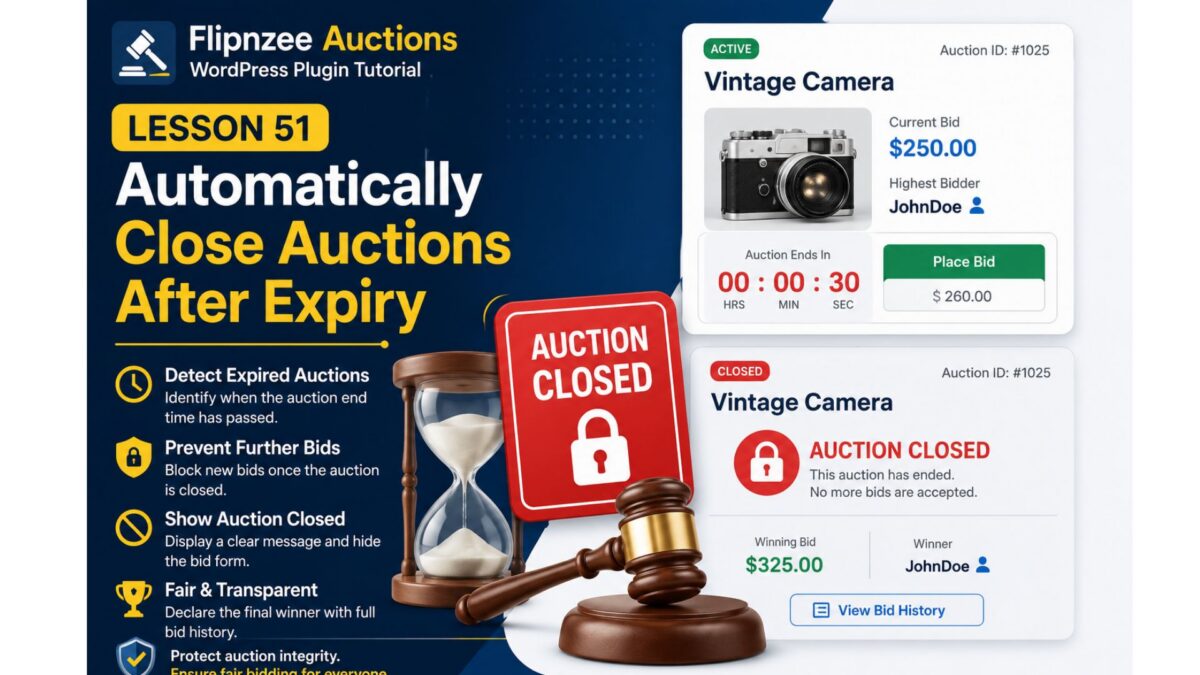
One of the most important responsibilities of an auction platform is ensuring that bidding stops exactly when the auction ends. In earlier lessons, our Flipnzee Auctions plugin allowed users to place bids while the auction was active. However, there was still one significant issue—an auction could technically remain active in the database even after its scheduled end time.

In this lesson, we solved that problem by automatically closing expired auctions during the bid validation process.


The Problem

Imagine an auction scheduled to end at 15:00 UTC.

If nobody manually changes its status, the auction could continue showing as Active, allowing visitors to attempt placing bids after the deadline.

This creates several problems:

  • Bids may be accepted after the auction has ended.
  • Auction status becomes inaccurate.
  • Administrators must manually close every auction.
  • Buyers lose confidence in the auction system.

We wanted the plugin to handle this automatically.


Our Approach

Whenever a user submits a bid, the plugin now performs one additional check before accepting it:

  1. Retrieve the auction’s end time.
  2. Compare it with the current UTC time.
  3. If the auction has expired:
    • Update its status to closed.
    • Reject the bid immediately.

This ensures that expired auctions are automatically closed the first time someone interacts with them after the deadline.


Step 1: Compare the Current Time

We used PHP’s gmdate() function to generate the current UTC time and compared it with the stored auction end time.

if (
    strtotime( gmdate( 'Y-m-d H:i:s' ) ) >=
    strtotime( $auction->auction_end )
) {

Using UTC prevents issues caused by different server time zones.


Step 2: Update the Auction Status

If the auction has expired, we update the auction record in the database.

$wpdb->update(
    $auction_table,
    array(
        'status' => 'closed',
    ),
    array(
        'id' => $auction_id,
    ),
    array(
        '%s',
    ),
    array(
        '%d',
    )
);

This permanently marks the auction as closed.


Step 3: Reject the Bid

After closing the auction, the function immediately returns false.

return false;

This prevents any further processing and ensures no late bids are accepted.


Complete Code

The new logic added to place_bid() looks like this:

if (
    strtotime( gmdate( 'Y-m-d H:i:s' ) ) >=
    strtotime( $auction->auction_end )
) {

    $wpdb->update(
        $auction_table,
        array(
            'status' => 'closed',
        ),
        array(
            'id' => $auction_id,
        ),
        array(
            '%s',
        ),
        array(
            '%d',
        )
    );

    return false;
}

Why This Design Works

Instead of relying on scheduled cron jobs or manual administration, the auction closes itself naturally whenever someone attempts to interact with it after its end time.

This approach is:

  • Simple
  • Reliable
  • Lightweight
  • Easy to maintain

It also avoids unnecessary background processes for smaller websites.


Current Limitation

While the auction now closes automatically, our frontend currently hides closed auctions from visitors.

This means that once an auction expires, its page no longer displays any auction information.

Although this successfully prevents further bidding, it isn’t the best user experience because visitors cannot see:

  • the winning bidder,
  • the final bid,
  • or the auction history.

We’ll address this in the next lesson.


What We Learned

In this lesson, we enhanced the bidding system by introducing automatic auction closure.

Specifically, we learned how to:

  • compare UTC timestamps using gmdate() and strtotime(),
  • update database records using $wpdb->update(),
  • automatically change an auction’s status,
  • prevent late bids,
  • and improve the reliability of the auction workflow.


Next Lesson

In Lesson 52, we’ll improve the user experience by displaying completed auctions instead of hiding them. Visitors will still be able to view the final auction details, including the winning bidder, winning amount, bid history, and a clear “Auction Closed” status, while the bidding form will be disabled.

Lesson 52 Implementation: Continue Displaying Closed Auctions with a Clear “Auction Ended” Status

In the previous lesson, the Flipnzee Auctions plugin stopped displaying auctions immediately after they were closed. While that prevented further bidding, it also removed the auction from public view, making it impossible for visitors to see the final auction result.

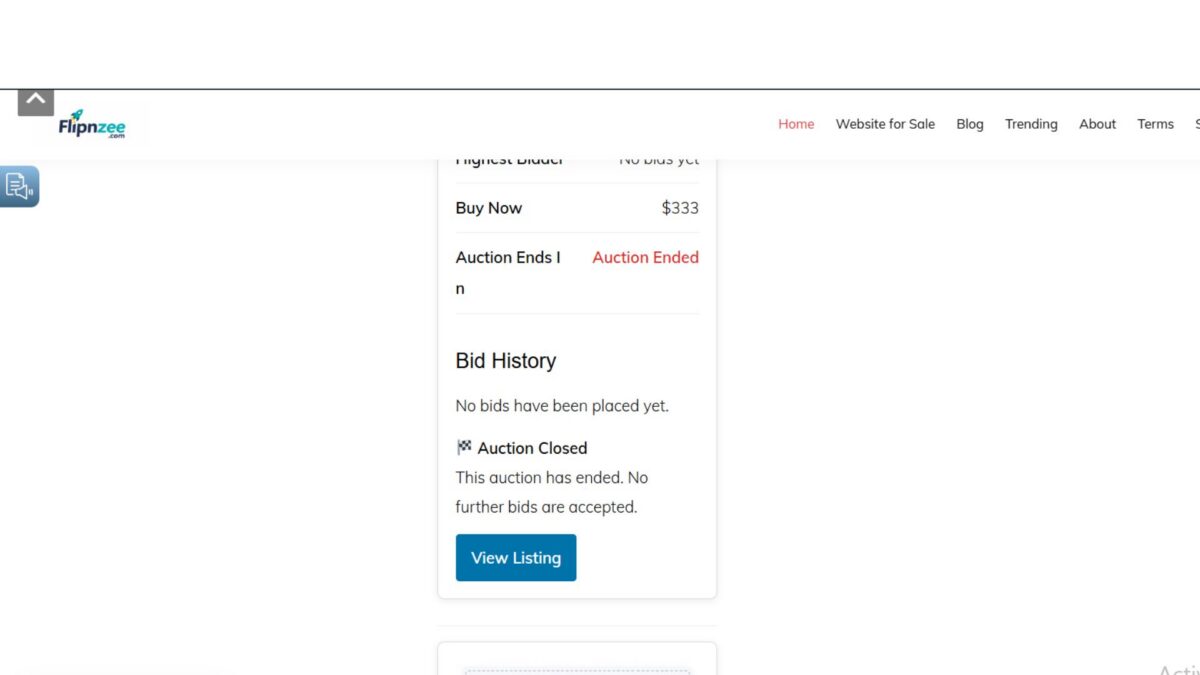
In this lesson, the plugin was improved so that closed auctions remain visible. Instead of disappearing, they now display an “Auction Ended” status and prevent any further bids from being placed.


Why This Change Was Needed

Previously, once an auction status became closed, the frontend shortcode only retrieved active auctions.

This caused several problems:

  • Visitors could no longer view completed auctions.
  • Final bid information disappeared.
  • Buyers could not see that an auction had successfully concluded.
  • There was no indication that bidding had ended.

A completed auction is still valuable information, so it should remain publicly visible.


Step 1: Update the Auction Query

Open:

includes/class-auction-manager.php

Locate the method:

public static function get_active_auctions()

Replace the query with:

public static function get_active_auctions() {

	global $wpdb;

	$table = $wpdb->prefix . 'flipnzee_auctions';

	return $wpdb->get_results(
		"SELECT *
		FROM {$table}
		WHERE status IN ('active', 'closed')
		ORDER BY auction_end ASC",
		ARRAY_A
	);
}

Instead of returning only active auctions, the method now also retrieves closed auctions.


Step 2: Detect Whether an Auction Has Ended

Inside:

includes/class-shortcodes.php

After loading the auction information, determine its current state:

$current_time = current_time( 'timestamp' );
$end_time     = strtotime( $auction['auction_end'] );

if ( $end_time <= $current_time ) {

	$status       = 'ended';
	$status_label = '🔴 Auction Ended';

} elseif ( ( $end_time - $current_time ) <= DAY_IN_SECONDS ) {

	$status       = 'ending';
	$status_label = '🟡 Ending Soon';

} else {

	$status       = 'live';
	$status_label = '🟢 Live Auction';

}

This allows the auction card to dynamically display whether the auction is live, ending soon, or has already ended.


Step 3: Display the Auction Status Badge

Above the auction title, output the status label:

<div class="flipnzee-auction-status <?php echo esc_attr( $status ); ?>">
	<?php echo esc_html( $status_label ); ?>
</div>

Visitors can now instantly recognise the auction state.


Step 4: Prevent Further Bidding

Hide the bidding form after the auction has ended.

Example:

<?php if ( $status !== 'ended' ) : ?>

	<!-- Bid form -->

<?php else : ?>

	<div class="flipnzee-auction-closed">
		<strong>🏁 Auction Closed</strong><br>
		This auction has ended. No further bids are accepted.
	</div>

<?php endif; ?>

This ensures the auction remains visible while preventing additional bids.


Step 5: Style the Closed Auction Notice

In:

assets/css/frontend.css

Add:

.flipnzee-auction-closed {
	background: #fff5f5;
	border: 1px solid #e74c3c;
	color: #b71c1c;
	padding: 12px;
	margin-top: 15px;
	border-radius: 6px;
	font-size: 14px;
}

The notice clearly communicates that bidding has finished.


Testing

The implementation was tested by viewing a closed auction.

Expected behaviour:

  • The auction card remained visible.
  • The status badge changed to Auction Ended.
  • The bid form disappeared.
  • Visitors were informed that no further bids would be accepted.

During testing, it was also observed that historical test auctions remained visible because multiple auction records had been created for the same listing during development. This highlighted an architectural improvement that would be addressed in the next lesson.

Download Source Code

Download the completed version after this lesson:


What Was Learned

This lesson improved the user experience by ensuring that completed auctions remain publicly visible instead of disappearing. Visitors can continue viewing the listing, the auction status, and historical information, while the system correctly prevents any new bids after the auction has ended.

The implementation also revealed the importance of maintaining a single auction record per listing, which would become the focus of the next lesson to simplify auction management and avoid duplicate auction histories.

Lesson 49 (Implementation): Display Professional Success and Error Messages After Bidding

In the previous lesson, the Flipnzee Auctions plugin redirected users back to the auction page after a bid was processed. While the functionality worked, users had no confirmation that their bid had been accepted or rejected.

In this implementation lesson, the plugin is enhanced to display clear success and error notifications using URL parameters, providing a much better user experience.


Objective

Implement professional notification messages that inform users whether:

  • Their bid was accepted.
  • Their bid was rejected.

Instead of silently refreshing the page, users now receive immediate feedback.


Step 1: Redirect With Status Parameter

The bid handler already redirects back to the auction page.

Instead of simply redirecting:

wp_safe_redirect( get_permalink( $listing_id ) );
exit;

it was updated to include a status parameter.

Successful bid:

wp_safe_redirect(
    add_query_arg(
        'bid',
        'success',
        get_permalink( $listing_id )
    )
);

exit;

Failed bid:

wp_safe_redirect(
    add_query_arg(
        'bid',
        'failed',
        get_permalink( $listing_id )
    )
);

exit;

This produces URLs like:

https://flipnzee.com/testing/?bid=success

or

https://flipnzee.com/testing/?bid=failed

Step 2: Detect the Status Parameter

Inside includes/class-shortcodes.php, just before displaying the auction details table, a check was added.

<?php

if ( isset( $_GET['bid'] ) ) {

    $status = sanitize_text_field(
        wp_unslash( $_GET['bid'] )
    );

    if ( 'success' === $status ) {
        ?>

        <div class="flipnzee-notice flipnzee-success">
            ✅ Your bid has been placed successfully.
        </div>

        <?php

    } elseif ( 'failed' === $status ) {
        ?>

        <div class="flipnzee-notice flipnzee-error">
            ❌ Your bid could not be accepted.
        </div>

        <?php
    }
}
?>

The plugin now safely reads the URL parameter and displays the appropriate message.


Step 3: Style the Notifications

The following CSS was added to assets/css/frontend.css.

.flipnzee-notice {

    padding: 15px;

    margin: 20px 0;

    border-radius: 6px;

    font-weight: 600;

}

.flipnzee-success {

    background: #ecfdf3;

    color: #046c4e;

    border-left: 5px solid #10b981;

}

.flipnzee-error {

    background: #fef2f2;

    color: #b91c1c;

    border-left: 5px solid #ef4444;

}

These styles make notifications stand out while remaining consistent with modern WordPress admin and frontend design.


Step 4: Test the Feature

Two scenarios were tested.

Successful Bid

After placing a valid bid, the user is redirected to:

?bid=success

and sees:

✅ Your bid has been placed successfully.

Failed Bid

If the bid is rejected, the user is redirected to:

?bid=failed

and sees:

❌ Your bid could not be accepted.

Troubleshooting During Implementation

Several issues were encountered before the feature worked correctly.

1. Notification Did Not Appear

Initially, the URL contained:

?bid=success

but no message appeared.

The issue was that the notification block had been inserted inside a section of code that wasn’t executed at the correct point in the page lifecycle.

Moving the notification logic immediately before the auction details table resolved the problem.


2. PHP Syntax Error

A parse error occurred after moving code.

Using the PHP linter helped identify the exact line causing the issue.

php -l includes/class-shortcodes.php

This quickly revealed an unexpected token error, allowing it to be corrected before uploading the plugin.


3. HTML Structure

During implementation, the winning/outbid status message was accidentally placed inside a <tr> element.

This produced invalid HTML.

The message block was moved outside the table so that the auction metadata table remained structurally correct.


4. User Display Name

While testing, the highest bidder appeared simply as:

user

instead of the expected display name.

The SQL query was working correctly—the WordPress account’s Display Name was simply set to “user”. Updating the profile’s display name fixed the issue.


Final Result

The auction page now provides immediate visual feedback whenever a bid is processed.

Users no longer have to guess whether their action succeeded, making the bidding experience more intuitive and professional.

Download Source Code

Download the starting version of the plugin before the lesson:

Download the completed version after this lesson:


What We Learned

In this lesson, we learned how to:

  • Redirect users with URL parameters.
  • Read query string values safely using sanitize_text_field() and wp_unslash().
  • Display contextual success and error notices.
  • Style frontend notifications with CSS.
  • Validate PHP files using the built-in linter.
  • Keep HTML structure valid while inserting dynamic content.

Conclusion

Although the underlying bidding logic was already functional, adding user-facing notifications significantly improved the usability of the Flipnzee Auctions plugin. Small enhancements like clear feedback messages create a smoother and more professional user experience, reducing confusion and increasing user confidence during the bidding process.

Lesson 48 Implementation – Prevent Users from Bidding on Their Own Highest Bid

In the previous lesson, we discussed why an auction system should not allow the current highest bidder to keep increasing their own bid. In this implementation lesson, we’ll add server-side validation that prevents self-bidding.

By the end of this lesson, if the highest bidder attempts to place another bid, the bid will be rejected before it is saved to the database.


Step 1: Open the Bid Manager

Open the following file:

includes/class-bid-manager.php

Locate the place_bid() method:

public static function place_bid(
    $auction_id,
    $bidder_id,
    $bid_amount
) {

Step 2: Retrieve the Current Highest Bidder

Inside the function, locate the following code:

global $wpdb;

$bid_table = $wpdb->prefix . 'flipnzee_bids';

$auction_table = $wpdb->prefix . 'flipnzee_auctions';

Immediately after it, add:

$highest_bidder = self::get_highest_bidder(
    $auction_id
);

The beginning of the function now becomes:

global $wpdb;

$bid_table = $wpdb->prefix . 'flipnzee_bids';

$auction_table = $wpdb->prefix . 'flipnzee_auctions';

$highest_bidder = self::get_highest_bidder(
    $auction_id
);

This loads the user who currently owns the highest bid.


Step 3: Locate the Current Bid

Further down in the same function, locate the code that retrieves the current bid:

$current_bid = $wpdb->get_var(
    $wpdb->prepare(
        "SELECT current_bid
        FROM {$auction_table}
        WHERE id = %d",
        $auction_id
    )
);

Step 4: Prevent Self-Bidding

Immediately after the code above, add:

if (
    $highest_bidder &&
    (int) $highest_bidder->bidder_id === (int) $bidder_id
) {

    return new WP_Error(

        'already_highest_bidder',

        __(
            'You are already the highest bidder.',
            'flipnzee-auctions'
        )

    );

}

The complete section now becomes:

$current_bid = $wpdb->get_var(
    $wpdb->prepare(
        "SELECT current_bid
        FROM {$auction_table}
        WHERE id = %d",
        $auction_id
    )
);

if (
    $highest_bidder &&
    (int) $highest_bidder->bidder_id === (int) $bidder_id
) {

    return new WP_Error(

        'already_highest_bidder',

        __(
            'You are already the highest bidder.',
            'flipnzee-auctions'
        )

    );

}

Whenever the logged-in user is already leading the auction, the function stops immediately and returns a WP_Error.


Step 5: Upload the Updated Plugin

Create a fresh ZIP archive of the plugin:

zip -r flipnzee-auctions.zip flipnzee-auctions

Upload it through:

Plugins → Add New → Upload Plugin

Activate the updated version.


Step 6: Test the Feature

Log in as the user who currently has the highest bid.

Try placing another bid.

Expected Result

The bid is rejected.

No new row is inserted into the bids table.

The current bid remains unchanged.

Although no message is displayed yet, the backend validation is working correctly.


Complete Source Code

Retrieve the Highest Bidder

global $wpdb;

$bid_table = $wpdb->prefix . 'flipnzee_bids';

$auction_table = $wpdb->prefix . 'flipnzee_auctions';

$highest_bidder = self::get_highest_bidder(
    $auction_id
);

Prevent Self-Bidding

$current_bid = $wpdb->get_var(
    $wpdb->prepare(
        "SELECT current_bid
        FROM {$auction_table}
        WHERE id = %d",
        $auction_id
    )
);

if (
    $highest_bidder &&
    (int) $highest_bidder->bidder_id === (int) $bidder_id
) {

    return new WP_Error(

        'already_highest_bidder',

        __(
            'You are already the highest bidder.',
            'flipnzee-auctions'
        )

    );

}

What We Achieved

By implementing this lesson, we made the auction system smarter and fairer.

The plugin now:

  • Prevents users from bidding against themselves.
  • Stops unnecessary increases in the auction price.
  • Uses secure server-side validation that cannot be bypassed from the browser.
  • Returns a WP_Error when a self-bid is detected.
  • Ensures the current bid and bid history remain unchanged when the validation fails.

At this stage, the validation works correctly, although users do not yet receive a visible explanation when their bid is rejected.

Download Source Code

Download the starting version of the plugin before the lesson:

Download the completed version after this lesson:

What’s Next?

In Lesson 49, we’ll build a proper notification system to display friendly success and error messages after bid submission, including:

  • ✅ Bid placed successfully.
  • ❌ You are already the highest bidder.
  • ❌ Bid amount is too low.
  • ❌ Auction has ended.

This will complete the bidding workflow and provide users with clear, professional feedback after every action.

Implementing Lesson 46: Enforcing a Minimum Bid Increment in Flipnzee Auctions

In the previous lesson, we discussed why every professional auction system should require a minimum increase over the current highest bid. In this implementation lesson, we’ll modify the Flipnzee Auctions plugin so that users cannot place insignificant bids and always know the minimum amount required.

By the end of this implementation, the plugin will:

  • Reject bids that are too low.
  • Display the minimum allowed bid.
  • Guide users with browser-side validation.
  • Improve the overall auction experience.

Step 1: Define the Minimum Increment

Open:

includes/class-bid-manager.php

Locate the section where the current highest bid is retrieved.

Immediately afterwards, add:

/*
 * Minimum bid increment.
 */
$minimum_increment = 10;

$minimum_allowed_bid =
    (float) $current_bid +
    $minimum_increment;

This calculates the lowest amount that can be accepted.

For example:

Current Bid:      $444
Minimum Increment $10
Minimum Bid:      $454

Step 2: Validate Incoming Bids

Find the existing validation:

if ( $bid_amount <= (float) $current_bid ) {
    return false;
}

Replace it with:

/*
 * Validate minimum bid.
 */
if ( $bid_amount < $minimum_allowed_bid ) {
    return false;
}

Now every new bid must be at least Current Bid + $10.

Examples:

Current BidSubmitted BidResult
$444$445❌ Rejected
$444$450❌ Rejected
$444$454✅ Accepted
$444$500✅ Accepted

Step 3: Display the Minimum Bid

Open:

includes/class-shortcodes.php

Locate the auction details table.

Immediately below the Current Bid row, insert:

<tr>
    <th>Minimum Bid</th>
    <td>
        <?php
        $minimum_bid =
            (float) $auction['current_bid'] + 10;

        echo esc_html(
            '$' . number_format_i18n(
                $minimum_bid,
                0
            )
        );
        ?>
    </td>
</tr>

The auction information now becomes:

Start Price      $111
Current Bid      $444
Minimum Bid      $454
Buy Now          $333

Visitors immediately know the next valid bid amount.


Step 4: Restrict the Bid Input

Still in:

includes/class-shortcodes.php

Locate the bid input field.

Replace it with:

<?php
$minimum_bid =
    (float) $auction['current_bid'] + 10;
?>

<input
    type="number"
    step="10"
    min="<?php echo esc_attr( $minimum_bid ); ?>"
    value="<?php echo esc_attr( $minimum_bid ); ?>"
    name="bid_amount"
    placeholder="Your Bid"
    required
>

This provides three improvements:

  • min prevents smaller values from being submitted.
  • value pre-fills the next valid bid.
  • step increases or decreases by $10 using the spinner controls.

Testing the Feature

After refreshing the auction page, the auction details should resemble:

Current Bid      $999
Minimum Bid      $1009

Your Bid
[1009]

[ Place Bid ]

Testing results:

BidExpected
1000❌ Rejected
1005❌ Rejected
1009✅ Accepted
1019✅ Accepted

Browser Validation

Modern browsers also assist users before the form is submitted.

Attempting to enter a value below the minimum now displays a validation message similar to:

Value must be greater than or equal to 1009.

This improves usability by informing users immediately rather than after submission.


Files Modified

During this implementation, only two files required changes:

includes/class-bid-manager.php
includes/class-shortcodes.php

Keeping the modifications localized makes the feature easier to maintain and extend.


Result

After completing this implementation, Flipnzee Auctions now provides a more professional bidding experience by:

  • Enforcing a minimum bid increment on the server.
  • Displaying the minimum allowed bid to visitors.
  • Preventing invalid bids through browser validation.
  • Reducing unnecessary or insignificant bid increases.

These enhancements make the auction process clearer, fairer, and more intuitive for bidders.

Download Source Code

Download the starting version of the plugin before the lesson:

Download the completed version after this lesson:


What’s Next?

In the next lesson, we’ll continue improving the auction experience by adding more intelligent bidding features, making Flipnzee Auctions feel even closer to a production-ready auction platform.

Implementing Lesson 45: Displaying Bid History in Flipnzee Auctions

In Lesson 45, we transformed our auction system from simply displaying the current highest bid into a much more transparent platform by introducing Bid History.

Instead of showing only the latest bid amount, visitors can now see every bid placed on an auction, who placed it, and when it was submitted. This feature is common on professional auction platforms because it builds trust and encourages competitive bidding.

In this implementation post, we’ll walk through the complete code used to build the Bid History feature.


Step 1: Create a Method to Retrieve Bids

The first step is to retrieve all bids for a particular auction from the database.

Open:

includes/class-bid-manager.php

Add the following method inside the Flipnzee_Bid_Manager class.

/**
 * Get all bids for an auction.
 *
 * @param int $auction_id Auction ID.
 *
 * @return array
 */
public static function get_bids( $auction_id ) {

	global $wpdb;

	$bid_table = $wpdb->prefix . 'flipnzee_bids';

	return $wpdb->get_results(
		$wpdb->prepare(
			"SELECT *
			FROM {$bid_table}
			WHERE auction_id = %d
			ORDER BY bid_amount DESC,
			         created_at DESC",
			$auction_id
		)
	);

}

What this code does

  • Retrieves every bid for the selected auction
  • Uses prepared SQL statements for security
  • Orders bids from highest to lowest
  • Displays newer bids first if two bids have the same amount

Step 2: Retrieve Bid History Inside the Shortcode

Open:

includes/class-shortcodes.php

Locate the auction details table.

Immediately after the closing </table> tag, retrieve all bids.

<?php
$bids = Flipnzee_Bid_Manager::get_bids(
	$auction['id']
);
?>

This gives us all bids belonging to the currently displayed auction.


Step 3: Display the Bid History Heading

If bids exist, display a heading.

<h3>Bid History</h3>

Step 4: Handle Auctions With No Bids

Before creating the table, check whether any bids exist.

<?php if ( empty( $bids ) ) : ?>

<p>No bids have been placed yet.</p>

<?php else : ?>

This provides a better user experience than displaying an empty table.


Step 5: Create the Bid History Table

Now create the HTML table.

<table class="flipnzee-bid-history">

<thead>

<tr>

<th>Bidder</th>

<th>Amount</th>

<th>Time</th>

</tr>

</thead>

<tbody>

Step 6: Display Every Bid

Loop through all bids.

<?php foreach ( $bids as $bid ) : ?>

<?php
$user = get_userdata(
	$bid->bidder_id
);
?>

<tr>

<td>

<?php
echo esc_html(
	$user
	? $user->display_name
	: 'Unknown'
);
?>

</td>

<td>

<?php
echo '$' .
	number_format_i18n(
		$bid->bid_amount,
		2
	);
?>

</td>

<td>

<?php
echo esc_html(
	wp_date(
		'd M Y g:i A',
		strtotime(
			$bid->created_at
		)
	)
);
?>

</td>

</tr>

<?php endforeach; ?>

This code displays:

  • Bidder name
  • Bid amount
  • Bid date and time

Step 7: Close the Table

Finish the table.

</tbody>

</table>

<?php endif; ?>

Step 8: Improve the Table Appearance

Open:

assets/css/frontend.css

Add the following styles.

.flipnzee-bid-history{
	width:100%;
	border-collapse:collapse;
	margin:20px 0;
}

.flipnzee-bid-history th,
.flipnzee-bid-history td{
	padding:10px;
	border-bottom:1px solid #ddd;
	text-align:left;
	white-space:nowrap;
}

.flipnzee-bid-history th{
	background:#f5f5f5;
	font-weight:600;
}

This produces a cleaner and more professional table.


Final Result

After completing this lesson, each auction page now displays something like:

BidderAmountTime
Rajeev Bagra$66,666.0003 Jul 2026 12:09 PM
Rajeev Bagra$444.0003 Jul 2026 12:09 PM

Visitors can immediately understand:

  • Who is bidding
  • How the auction has progressed
  • When bids were placed
  • The current competition

Troubleshooting During Development

While implementing this feature, a few issues were encountered and resolved:

  • Initially, the page displayed “No bids have been placed yet.” even though bids existed in the database.
  • A temporary debug statement was added to display the current auction ID, confirming that the correct auction (Auction ID: 31) was being queried.
  • After verifying the auction ID and database records, the bid history displayed correctly.
  • The bid amount column initially wrapped because of the narrow card layout; this was improved using CSS with white-space: nowrap.
  • The raw database timestamp was replaced with a more readable format using wp_date().

These small debugging steps are a normal part of plugin development and highlight the importance of verifying data flow before assuming the query itself is incorrect.


What We Achieved

By the end of this implementation, Flipnzee Auctions gained another feature found in professional auction platforms:

  • ✅ Secure database retrieval of bid history
  • ✅ Display bidder names
  • ✅ Display bid amounts
  • ✅ Display bid timestamps
  • ✅ Graceful handling of auctions with no bids
  • ✅ Clean, responsive frontend table
  • ✅ Increased transparency and trust for bidders

Download Source Code

Download the starting version of the plugin before the lesson:

Download the completed version after this lesson:

In the next lesson, we’ll enhance the bidding engine further by introducing Minimum Bid Increment Validation, ensuring that every new bid must exceed the current highest bid by a configurable minimum amount.

Lesson 44 Implementation: Building the First Working Bidding System

One of the biggest milestones in the Flipnzee Auctions project was transforming auctions from static listings into interactive auctions where visitors can actually place bids. In this lesson, the bidding engine was implemented from scratch, allowing authenticated users to compete for auction listings in real time.

What We Built

By the end of this lesson, the plugin supports:

  • Creating a dedicated database table for bids
  • Recording every bid placed by users
  • Updating the current highest bid automatically
  • Displaying a bid form on the frontend
  • Validating that new bids are higher than the existing bid
  • Persisting bid history in the database

This is the first version of a fully functional auction engine.


Step 1: Creating the Bid Database Table

A new database table named wp_flipnzee_bids was introduced.

The table stores:

  • Auction ID
  • Bidder ID
  • Bid Amount
  • Timestamp

Each bid is preserved permanently, creating a complete bidding history for every auction.

Unlike simply updating a single value, storing individual bids allows future features such as:

  • Bid history
  • Highest bidder tracking
  • Auction analytics
  • Winner determination
  • Escrow integration

Step 2: Building the Bid Manager

A brand-new class called:

Flipnzee_Bid_Manager

was created.

This class became responsible for all bidding operations, including:

  • Receiving new bids
  • Checking the current highest bid
  • Rejecting invalid bids
  • Saving successful bids
  • Updating the auction’s current bid

Separating bidding logic into its own class keeps the plugin modular and much easier to maintain.


Step 3: Saving Bids

When a visitor submits a bid:

  1. The auction is identified.
  2. The existing highest bid is retrieved.
  3. The new amount is compared against the current bid.
  4. Valid bids are inserted into the bids table.
  5. The auction record is updated with the new highest bid.

This ensures that the auction table always reflects the latest highest bid while preserving every historical bid.


Step 4: Adding the Frontend Bid Form

The auction card on the frontend was enhanced with a simple bidding interface.

Visitors who are logged in can now enter a bid amount and submit it directly from the auction listing.

If the visitor is not logged in, the interface instead prompts them to sign in before participating.

This provides a clean foundation for future enhancements without complicating the user experience.


Step 5: Processing Bid Requests

A new request handler was added to process submitted bids securely.

The handler performs several important tasks:

  • Verifies the WordPress nonce
  • Ensures the user is authenticated
  • Sanitizes user input
  • Calls the Bid Manager
  • Redirects the visitor back to the auction page

Using WordPress admin-post actions keeps the implementation aligned with WordPress coding standards.


Step 6: Testing the Complete Workflow

The implementation was verified through several tests.

The following scenarios were successfully completed:

  • Bid form displayed correctly
  • Bid submitted successfully
  • Bid stored in the database
  • Current bid updated automatically
  • Multiple bids recorded correctly
  • Frontend reflected the new highest bid

Database verification confirmed that both the wp_flipnzee_bids and wp_flipnzee_auctions tables were updated correctly after each successful bid.


Challenges Encountered

Several implementation issues were encountered during development, including:

  • Loading the new Bid Manager class correctly
  • Registering new WordPress action hooks
  • Resolving PHP syntax errors after adding new functionality
  • Ensuring database tables were created properly
  • Confirming that current bids updated after inserts
  • Troubleshooting bid submission until the complete workflow functioned correctly

These debugging sessions reinforced an important lesson:

Building new features often involves more time spent integrating and testing than writing the original code.


Why This Matters

This lesson transformed the plugin from a simple auction display into a genuine auction platform.

Before this lesson, visitors could only view auction information.

After this lesson, they can actively participate by placing bids that are securely stored and reflected immediately as the current highest bid.

Many advanced features now become possible because this foundation exists.

Download Source Code

Download the starting version of the plugin before the lesson:

Download the completed version after this lesson:


What’s Next?

In the next lesson, we’ll improve the bidding experience by introducing features such as:

  • Displaying bid history
  • Validating minimum bid increments
  • Preventing bids after auctions end
  • Better user feedback after bid submission
  • Additional auction rules and safeguards

These improvements will make the auction system more robust while preparing it for future features such as automatic winner selection and escrow integration.


Key Takeaways

  • Separate functionality into dedicated manager classes.
  • Store every bid instead of only the highest bid.
  • Always validate user input before writing to the database.
  • Use WordPress nonces and admin-post handlers for secure form processing.
  • Test every database operation thoroughly to verify the entire workflow.

Lesson Outcome: By the end of Lesson 44, Flipnzee Auctions supports real bid placement with database persistence and automatic highest-bid tracking, laying the groundwork for a complete online auction platform.

Lesson 43: Implementing Dynamic Auction Status Badges in the Flipnzee Auctions Plugin


In the previous lesson, we designed the concept of dynamic auction status badges to provide visitors with a quick visual indication of an auction’s current state. In this lesson, we implemented that functionality in the Flipnzee Auctions plugin and integrated it into the frontend auction cards.

Instead of requiring visitors to interpret countdown timers or auction dates, the plugin now displays a clear, color-coded status badge that updates automatically based on the auction’s current status.


Why Auction Status Badges Matter

When visitors browse multiple auctions, they should be able to identify their status instantly.

A simple badge helps answer questions like:

  • Is this auction currently active?
  • Has it already ended?
  • Is it scheduled to begin later?
  • Has it been cancelled?

Providing this information visually improves usability and creates a more professional marketplace experience.


Badge States

The plugin now supports displaying badges for various auction states, including:

  • 🟢 Active
  • 🔴 Auction Ended
  • 🟡 Scheduled
  • ⚪ Draft
  • ⚫ Cancelled (for future use)

Each badge uses a distinct color and label, making the auction status immediately understandable.


Implementing the Badge

The auction card template was updated to output a badge based on the auction’s status.

Instead of hardcoding text, the badge is generated dynamically using the auction record stored in the database.

This keeps the display synchronized with the auction’s actual state.


Styling the Badge

Custom CSS was added to improve the appearance of the badges.

The styling includes:

  • rounded corners
  • background color
  • readable text color
  • padding
  • spacing from surrounding elements

The result is a compact status indicator that integrates naturally into the auction card design.


Improving the User Experience

Visitors no longer need to calculate whether an auction has ended by reading dates and times.

The badge communicates the auction status immediately.

This small enhancement significantly improves the browsing experience, particularly when multiple auctions are displayed on the same page.


Testing the Feature

After implementing the badges, different auction records were tested to verify that:

  • Active auctions displayed the correct badge.
  • Ended auctions showed an “Auction Ended” badge.
  • Badge styling remained consistent across listings.
  • The status updated correctly based on the auction data.

Challenges During Development

While implementing this lesson, development naturally expanded into improving the auction management workflow.

This led to the beginning of an Edit Auction feature, allowing administrators to modify auction details from the WordPress dashboard. During this process, several unexpected issues arose—particularly with updating auction start and end dates—which required extensive debugging.

One important takeaway was that implementing a feature is only part of development; carefully tracing data from the form, through WordPress, and into the database is equally important when diagnosing unexpected behavior.


What I Learned

This lesson reinforced several practical WordPress development concepts:

  • Displaying dynamic frontend content
  • Using database values to control the user interface
  • Writing reusable conditional logic
  • Improving user experience through visual indicators
  • Enhancing plugin design with simple CSS styling

Tips for Plugin Developers

  • Use colors consistently throughout your plugin.
  • Display important information visually whenever possible.
  • Keep frontend status indicators synchronized with backend data.
  • Small UI improvements often have a significant impact on usability.
  • Test every possible status to ensure the correct badge is displayed.

Final Thoughts

Dynamic auction status badges are a small feature that greatly improves the overall professionalism of an auction website. Rather than relying solely on dates or countdown timers, visitors receive an immediate visual cue about each auction’s current state.

Download Source Code

Download the starting version of the plugin before the lesson:

Download the completed version after this lesson:


Lesson 41 Implementation: Adding a Verified Analytics Summary to Auction Cards


One of Flipnzee’s biggest goals is to help buyers make informed decisions. Instead of relying only on seller-provided information, auction cards should display trusted website metrics generated by the Flipnzee Analytics plugin.

In this lesson, the auction card was enhanced with a compact analytics summary that appears above the pricing information.

What was implemented

1. Added a “Google Verified Analytics” section

A new analytics block was inserted into the auction card layout. It retrieves analytics data from the Flipnzee Analytics plugin and displays it directly inside each auction listing.

The summary currently includes:

  • Monthly Users
  • Monthly Sessions
  • Google Impressions

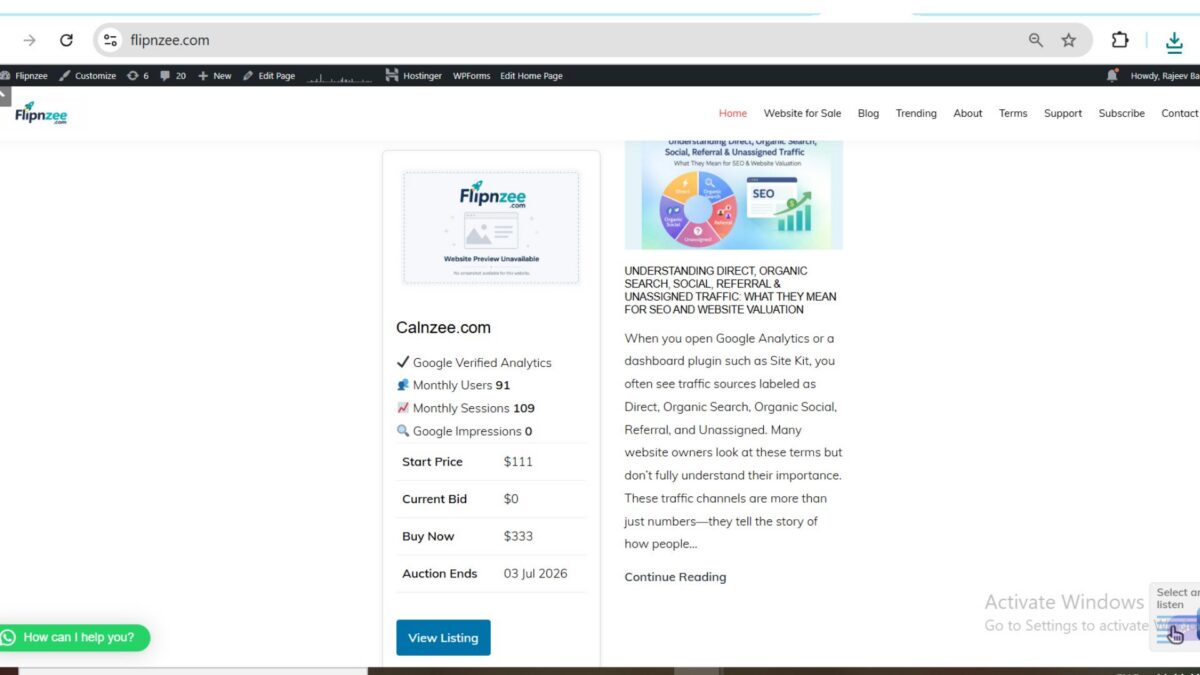
This allows buyers to evaluate website performance without opening the full listing page.


2. Prevented PHP errors

During testing, a critical error occurred when analytics data was unavailable.

To make the shortcode more reliable, checks were added before accessing transient data so that missing analytics now safely display as zero instead of generating errors.

Example:

is_array( $main ) ? ( $main['users'] ?? 0 ) : 0

This makes the shortcode much more robust.


3. Improved terminology

Instead of generic labels, the metrics were renamed to better match buyer expectations.

Old labels:

  • Users
  • Sessions
  • Impressions

New labels:

  • Monthly Users
  • Monthly Sessions
  • Google Impressions

These names immediately communicate what the numbers represent.


4. Formatted values

Several presentation improvements were made:

  • Auction prices now display with a $ currency symbol.
  • Numeric values use WordPress number formatting functions.
  • Auction end dates are formatted into a clean, readable style instead of showing raw database values.

Example:

03 Jul 2026

instead of

2026-07-03 06:29:00

5. Styled the analytics section

A dedicated stylesheet was added for the analytics summary.

Visual improvements include:

  • Light blue background
  • Rounded corners
  • Consistent spacing
  • Professional typography
  • Improved alignment of labels and values

The “Google Verified Analytics” badge was also updated to better match Flipnzee’s branding.


Challenges encountered

While implementing the feature, several issues had to be resolved.

Browser and server caching

Initially, CSS changes appeared to have no effect. After investigation, the issue turned out to be cached styles rather than incorrect code.


CSS duplication

During testing, duplicate CSS rules accumulated inside frontend.css.

Although this did not break functionality, identifying duplicate rules helped keep the stylesheet cleaner for future development.


Defensive coding

The analytics block originally assumed that transient data always existed.

Adding validation around analytics arrays made the shortcode much safer and prevented runtime errors.


Result

Auction cards now present much more than just prices.

Each listing immediately communicates important website metrics before the visitor even opens the full listing page.

The card now combines:

  • Website preview
  • Verified analytics
  • Auction pricing
  • Auction end date
  • Call-to-action button

This creates a much stronger first impression for buyers and moves Flipnzee closer to becoming a marketplace that emphasizes verified website quality, not just website availability.

Download Source Code

Download the starting version of the plugin before the lesson:

Download the completed version after this lesson:


Key takeaway

A website buyer is purchasing more than a domain name—they are evaluating traffic, audience, and search visibility. By integrating verified analytics directly into auction cards, Flipnzee provides meaningful context that traditional website marketplaces often require users to discover manually.


Next Lesson: Lesson 42 – Adding a Live Auction Countdown Timer

In the next lesson, we’ll implement a dynamic countdown timer that shows exactly how much time remains before an auction ends, creating urgency and improving the overall auction experience.