Lesson 60: Display Activity Logs in a Professional WordPress Admin Table

Overview

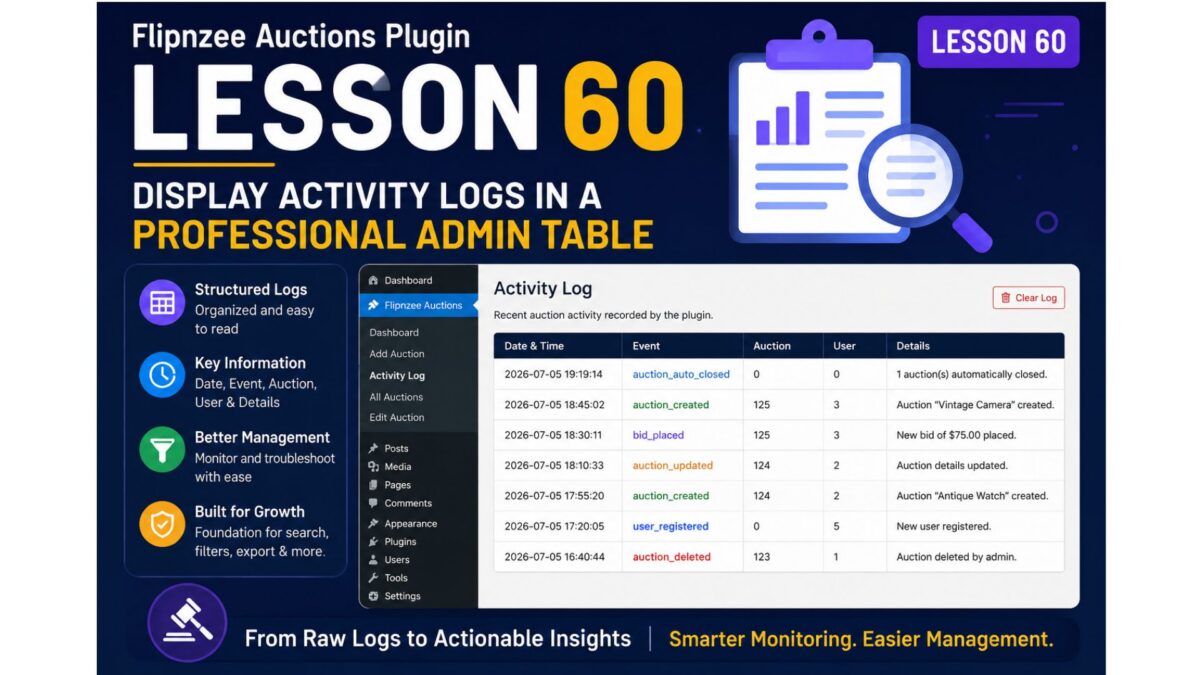
In Lesson 59, the Flipnzee Auctions plugin gained a dedicated Activity Log page that displays the contents of the log file. While functional, presenting raw log entries inside a text area isn’t ideal for administrators managing a busy auction marketplace.

In this lesson, we’ll redesign the Activity Log page by displaying each log entry in a clean WordPress-style table with separate columns for the timestamp, event, auction ID, user ID, and details.


What You Will Learn

  • Read and parse log entries from a text file.
  • Convert plain text into structured PHP arrays.
  • Build a professional HTML table using WordPress admin styling.
  • Improve readability for administrators.
  • Lay the foundation for future features like search, filtering, pagination, CSV export, and log deletion.

Current Output

Recent auction activity recorded by the plugin.

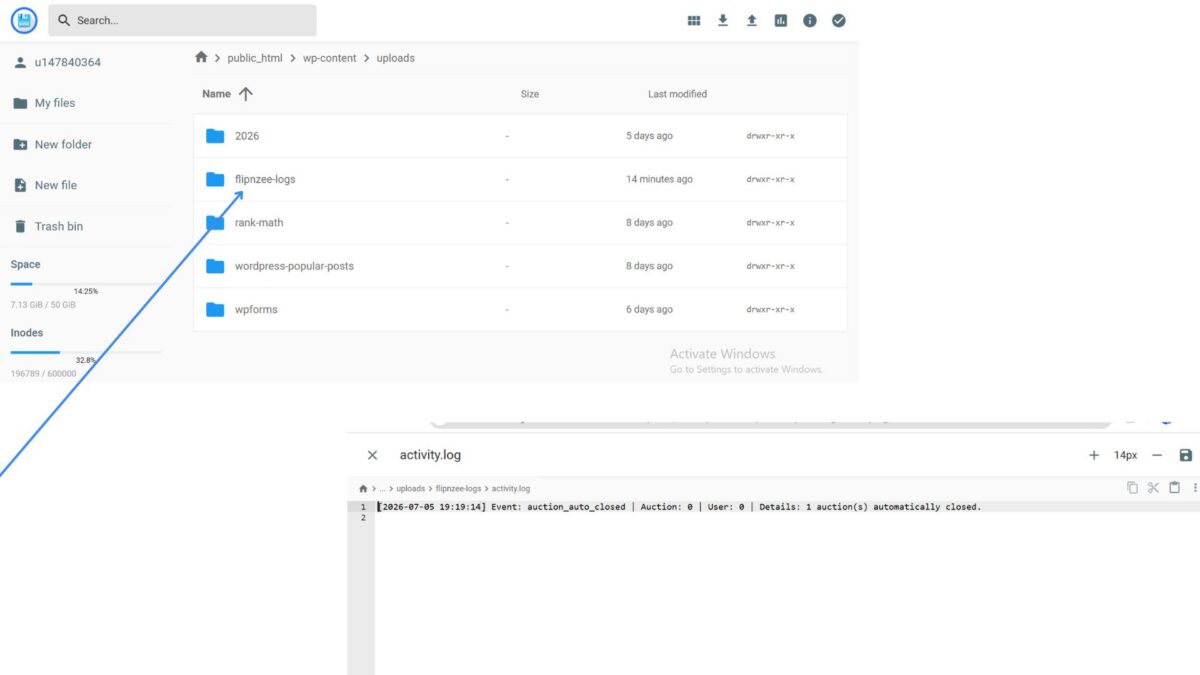
[2026-07-05 19:19:14] Event: auction_auto_closed | Auction: 0 | User: 0 | Details: 1 auction(s) automatically closed.

New Output

Date & TimeEventAuctionUserDetails
2026-07-05 19:19:14auction_auto_closed001 auction automatically closed

Why This Improvement Matters

Displaying logs as structured data makes them much easier to:

  • scan quickly
  • troubleshoot auction problems
  • identify system events
  • prepare for future search and filtering

It also gives the plugin a much more polished and professional appearance.


Implementation Roadmap

Step 1

Read the activity log file.

Step 2

Split the file into individual log entries.

Step 3

Extract:

  • timestamp
  • event
  • auction ID
  • user ID
  • details

using PHP string functions or regular expressions.

Step 4

Store each entry in an array.

Step 5

Generate a WordPress admin table.

Step 6

Handle empty or missing log files gracefully.

Step 7

Test with multiple log entries.


Skills Covered

  • File parsing
  • String manipulation
  • Arrays
  • Regular expressions
  • WordPress admin UI
  • HTML tables
  • Defensive programming

Expected Outcome

By the end of this lesson, the Flipnzee Auctions plugin will feature a professional Activity Log dashboard where every event is neatly organized into columns, making monitoring and troubleshooting significantly easier.


I think this is a strong progression from Lesson 59 because it builds directly on the feature you just implemented while introducing practical PHP skills such as file parsing and structured data handling. It also creates a solid foundation for future lessons like searching logs (Lesson 61), clearing logs (Lesson 62), or exporting logs to CSV (Lesson 63).
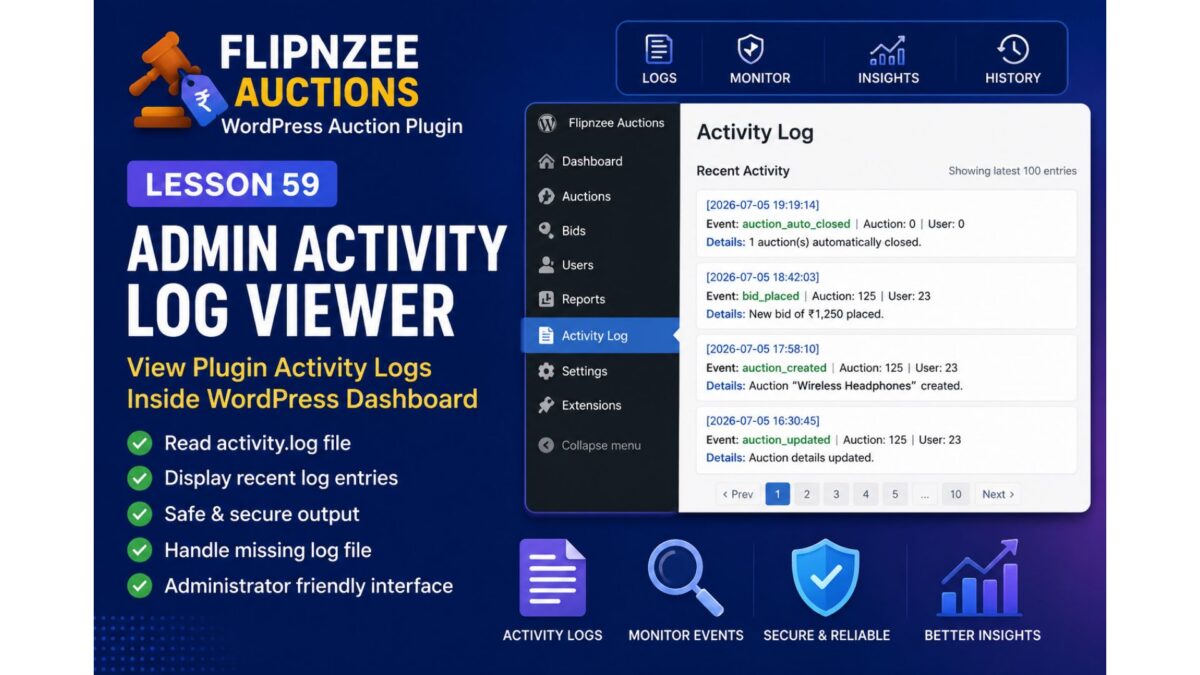
Lesson 59 – Build an Admin Activity Log Viewer for Flipnzee Auctions


Difficulty

Intermediate


What You’ll Learn

In this lesson, you’ll build the first administrative interface for the new logging system.

Instead of opening activity.log via File Manager or FTP, administrators will be able to read recent plugin activity directly from the WordPress dashboard.

By the end of this lesson, your plugin will:

  • Read the activity log file
  • Display recent entries inside wp-admin
  • Handle missing log files gracefully
  • Limit the number of displayed entries
  • Escape output securely
  • Prepare the foundation for future filtering and search

Why This Matters

Professional plugins don’t require developers to inspect server files.

They provide useful diagnostics directly inside WordPress.

This lesson transforms the logging system from a developer-only feature into an administrator-friendly tool.


What We’ll Build

A new admin page similar to:

Flipnzee Auctions
│
├── Dashboard
├── Auctions
├── Activity Log   ← NEW
└── Settings

The page will display something like:

Recent Activity

[2026-07-05 19:19:14]
Auction automatically closed

------------------------------------

[2026-07-05 18:42:03]
Bid placed

------------------------------------

[2026-07-05 17:58:10]
Auction created

Implementation Roadmap

Step 1

Create a new admin page:

Activity Log

Step 2

Locate

wp-content/uploads/
flipnzee-logs/activity.log

Step 3

Read the log safely using WordPress filesystem functions.


Step 4

Display only the most recent entries (for example, last 100 lines).


Step 5

Escape all output using:

esc_html()

Step 6

Show a friendly message if the log file doesn’t exist:

No activity has been recorded yet.

Step 7

Add basic styling for readability.


Best Practices You’ll Learn

  • Reading files safely
  • Preventing XSS with escaped output
  • Building admin pages
  • Working with plugin-generated files
  • Preparing data for future search/filter features

Files We’ll Modify

admin/class-admin.php
admin/class-admin-activity-log.php   (new)
assets/admin.css   (optional)

Skills You’ll Gain

After this lesson, you’ll know how to:

  • Create professional admin tools
  • Display plugin-generated files
  • Build diagnostic pages
  • Improve administrator experience
  • Extend your plugin without touching the frontend

What Comes Next

After completing this lesson, we’ll continue with:

Lesson 60 – Add a “Clear Activity Log” Button with WordPress Nonce Protection

In that lesson, administrators will be able to safely clear the activity log from the dashboard, while learning secure form handling and nonce verification.

This sequence will gradually turn Flipnzee Auctions into a production-quality WordPress plugin with professional monitoring and maintenance features.

Lesson 58 Implementation: Adding a Persistent Activity Logging System to Flipnzee Auctions

In the previous lesson, we introduced WordPress hooks so that other plugins and future Flipnzee components could respond whenever auctions were automatically closed.

In this lesson, we take the next step by building a lightweight activity logging system. Instead of silently processing important events, the plugin now records them in a dedicated log file. This creates an audit trail that helps during debugging, monitoring, and future analytics development.


What We Built

By the end of this lesson, the plugin can:

  • Create a dedicated logging class
  • Automatically create a log directory if it doesn’t exist
  • Create an activity.log file
  • Record important auction events
  • Store timestamps and useful event details
  • Keep logs separate from WordPress debug.log

Example log entry:

[2026-07-05 19:19:14]
Event: auction_auto_closed
Auction: 0
User: 0
Details: 1 auction(s) automatically closed.

Step 1 — Create the Activity Logger

A new file was added:

includes/class-activity-log.php

This class is responsible for:

  • Creating the log directory
  • Creating the log file
  • Formatting log entries
  • Writing entries safely

Instead of scattering error_log() calls throughout the plugin, everything now goes through one reusable class.

Benefits include:

  • Cleaner code
  • Easier maintenance
  • Centralized logging
  • Future extensibility

Step 2 — Load the Logger

The new logger class was loaded inside the main plugin file:

flipnzee-auctions.php

The class is included only if the file exists:

require_once FLIPNZEE_AUCTION_PATH .
    'includes/class-activity-log.php';

This ensures the logger is available everywhere in the plugin.


Step 3 — Record Automatic Auction Closures

Inside:

includes/class-auction-manager.php

The existing method:

update_expired_auctions()

was enhanced.

After expired auctions are closed automatically, the plugin now records a log entry.

Example:

if ( $updated_count > 0 ) {

    Flipnzee_Activity_Log::log(
        'auction_auto_closed',
        0,
        0,
        sprintf(
            '%d auction(s) automatically closed.',
            $updated_count
        )
    );
}

This means activity is only logged when one or more auctions were actually updated.


Step 4 — Store Logs in a Dedicated Folder

Rather than using WordPress’s global debug log, the plugin now creates its own directory:

wp-content/uploads/
    flipnzee-logs/
        activity.log

Keeping logs separate provides several advantages:

  • Easier troubleshooting
  • Cleaner WordPress debug logs
  • Plugin-specific history
  • Better preparation for future analytics features

Step 5 — Test the Logger

To verify everything worked:

  1. Created an auction that would expire shortly.
  2. Waited for the auction to expire.
  3. Allowed the plugin to automatically close the auction.
  4. Opened the log file on the server.

The log contained:

Event: auction_auto_closed
Details: 1 auction(s) automatically closed.

This confirmed that:

  • automatic expiration worked,
  • the logger executed correctly,
  • and the activity file was successfully written.

Final Result

The Flipnzee Auctions plugin now includes its own lightweight activity logging framework.

Important auction events can now be recorded without relying on WordPress debug logs, making troubleshooting significantly easier during development.

More importantly, this logging infrastructure lays the groundwork for future features such as:

  • administrator activity history
  • bidder activity logs
  • seller notifications
  • email event tracking
  • analytics dashboards
  • security auditing
  • webhook monitoring
  • plugin diagnostics

Download Source Code

Download the starting version of the plugin before the lesson:

Download the completed version after this lesson:


Key Takeaways

During this lesson, we:

  • Created a reusable Flipnzee_Activity_Log class.
  • Loaded the logger through the main plugin bootstrap.
  • Logged automatic auction closures.
  • Stored logs in wp-content/uploads/flipnzee-logs/activity.log.
  • Successfully verified that the logger writes real events to disk.

The Flipnzee Auctions plugin now has a solid foundation for tracking important marketplace activity, making future debugging, reporting, and analytics much easier.

Lesson 57: Automating Auction Maintenance with WP-Cron

In previous lessons, Flipnzee Auctions learned how to automatically close expired auctions and notify the WordPress ecosystem when lifecycle events occur.

However, one limitation still exists.

The automatic lifecycle management only runs when someone visits a page that retrieves active auctions.

If nobody visits the website for several hours, an auction could technically remain active until the next page request.

Professional auction platforms don’t depend on visitors to keep their data up to date.

Instead, they perform routine maintenance in the background.

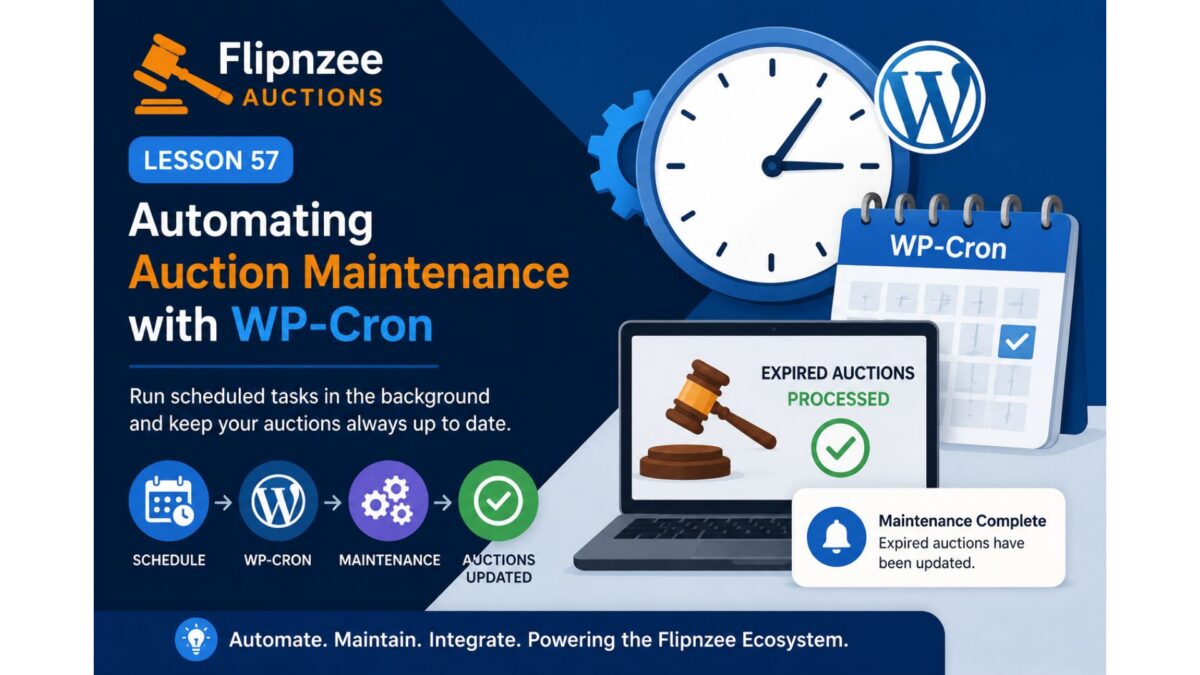
In this lesson, we’ll improve Flipnzee Auctions by integrating WordPress Cron (WP-Cron) so auction maintenance runs automatically at scheduled intervals.


Why This Lesson Is Needed

Currently, the workflow looks like this:

Visitor
    │
    ▼
Auction Page
    │
    ▼
Check Expired Auctions
    │
    ▼
Close Expired Auctions

This works well while visitors are browsing the website.

But imagine an auction ends at 2:00 AM.

If the next visitor doesn’t arrive until 8:00 AM, the auction won’t be processed until then.

For many websites, this delay may be acceptable.

For a professional auction platform, however, background processing provides a cleaner and more reliable design.


Understanding WP-Cron

Unlike a traditional Linux cron job, WP-Cron is part of WordPress itself.

Whenever WordPress receives a request, it checks whether any scheduled tasks are due.

If they are, WordPress executes them before continuing.

This allows plugins to perform routine maintenance without requiring administrators to manually trigger the process.


Our Existing Foundation

Fortunately, the plugin already contains the beginnings of a maintenance system.

During earlier development we introduced:

  • a scheduled maintenance hook
  • a maintenance callback
  • lifecycle processing methods

This lesson will refine and complete that implementation instead of replacing it.


Planned Improvements

During this lesson we will:

  • Review the existing scheduled maintenance architecture.
  • Ensure only one scheduled event is registered.
  • Improve the maintenance callback if necessary.
  • Reuse the lifecycle methods introduced in Lessons 55 and 56.
  • Verify that expired auctions can be processed through scheduled maintenance.
  • Preserve backward compatibility with visitor-triggered lifecycle updates.

Expected Workflow

After this lesson, the plugin architecture will look like this:

WP-Cron
    │
    ▼
Scheduled Maintenance
    │
    ▼
Auction Manager
    │
    ▼
Update Expired Auctions
    │
    ▼
Fire Lifecycle Hook
    │
    ▼
Future Flipnzee Plugins

This creates a single, reusable lifecycle pipeline regardless of how maintenance is triggered.


Why Reuse Existing Methods?

One important principle of software development is avoiding duplicated logic.

Rather than writing a second version of auction expiry processing specifically for WP-Cron, the scheduled task should simply call the same lifecycle methods already used elsewhere in the plugin.

This keeps maintenance simple and reduces the risk of inconsistent behaviour.


Learning Objectives

In this lesson we’ll learn:

  • How WP-Cron works.
  • Scheduling recurring events.
  • Preventing duplicate scheduled events.
  • Reusing business logic.
  • Building reliable background maintenance.
  • Improving plugin architecture through code reuse.

Files Likely to Change

Depending on the current implementation, we may modify:

flipnzee-auctions.php
includes/class-auction-manager.php

No database changes are expected.

No frontend changes are expected.


Benefits

Completing this lesson will allow Flipnzee Auctions to:

  • Automatically process expired auctions.
  • Keep auction data synchronized even during quiet periods.
  • Reuse existing lifecycle logic.
  • Continue supporting future integrations introduced in Lesson 56.
  • Move closer to a production-ready auction platform.

Looking Ahead

Once scheduled maintenance is fully operational, future lessons can build on it to introduce:

  • Winner notifications
  • Seller notifications
  • Scheduled reminder emails
  • Analytics synchronization
  • Activity logs
  • Automatic cleanup tasks

Because the lifecycle pipeline is already centralized, each new feature can build upon the same architecture.


Conclusion

Lesson 57 focuses on moving auction maintenance into the background using WordPress WP-Cron.

Rather than relying solely on visitors to trigger lifecycle processing, the plugin will begin performing routine maintenance automatically, making the auction platform more reliable, scalable, and suitable for real-world deployments.

This lesson continues the steady evolution of Flipnzee Auctions from a functional auction plugin into a professional, event-driven WordPress platform built on clean architecture and reusable components.

Lesson 56 – Building a WordPress Hook-Based Auction Lifecycle


Why This Lesson?

In Lesson 55, we successfully automated the auction lifecycle.

Whenever active auctions are retrieved, the plugin now automatically detects expired auctions and updates their status to Closed.

The feature works correctly.

However, there is one limitation.

Only the Auction Manager knows that an auction has just been closed.

No other plugin can respond to that event.

As Flipnzee grows into an ecosystem of complementary plugins, we need a way for different plugins to communicate without becoming tightly coupled.

This is exactly what WordPress Actions and Filters were designed for.


Why Hooks Matter

Suppose in the future Flipnzee Analytics wants to know when an auction closes.

Without hooks, the Analytics plugin would need to modify the Auctions plugin directly.

That creates unnecessary dependencies.

Instead, the Auctions plugin can simply announce:

“An auction has just been closed.”

Other plugins can decide whether they care about that event.


Current Flow

Visitor
    │
    ▼
Auction Shortcode
    │
    ▼
Auction Manager
    │
    ▼
Update Expired Auctions
    │
    ▼
Database

Only the Auction Manager knows what happened.


New Flow

Visitor
    │
    ▼
Auction Manager
    │
    ▼
Auction Closed
    │
    ├────────► Flipnzee Analytics
    │
    ├────────► Email Notifications
    │
    ├────────► Future Marketplace Plugin
    │
    └────────► Other Developers

Now the Auctions plugin becomes extensible.


What We’ll Build

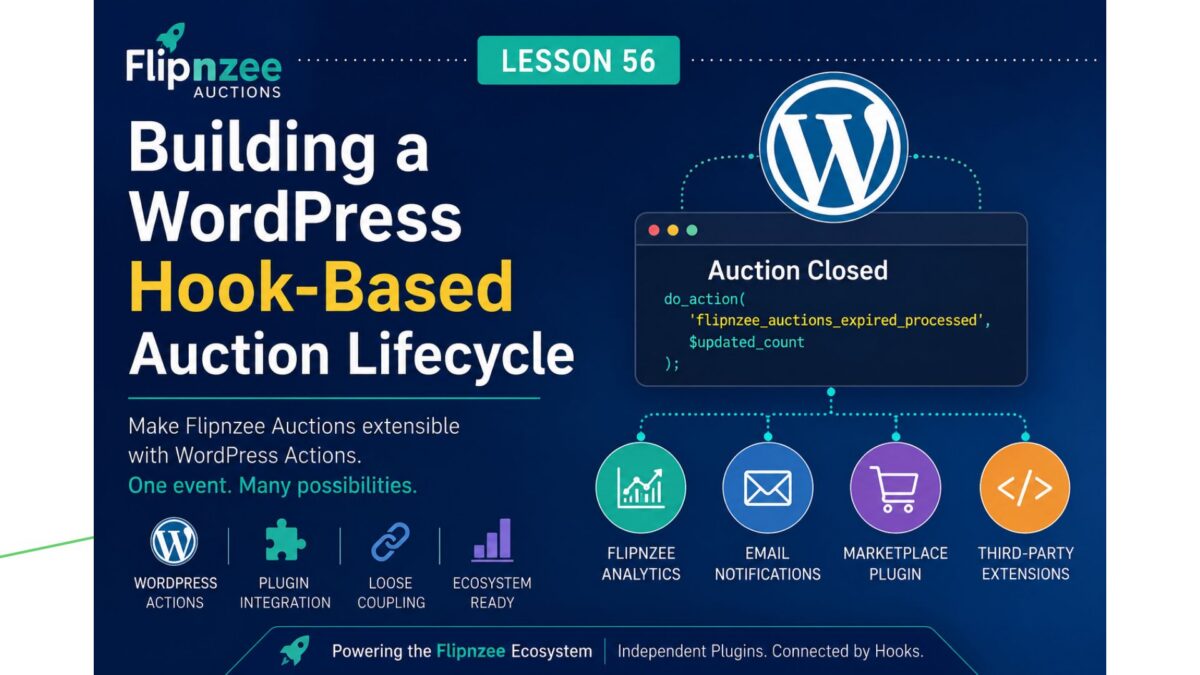
Whenever one or more auctions are automatically closed, we’ll fire a WordPress action.

For example:

do_action(
    'flipnzee_auctions_expired_processed',
    $updated_count
);

or perhaps an even more descriptive hook if we process individual auctions in the future.

Initially, nothing else will listen to this action.

That’s perfectly fine.

We’re building the extension point first.


Why This Fits the Flipnzee Platform

Flipnzee Analytics should never need to edit the Auctions plugin.

Instead, it can simply listen for events such as:

  • Auction Created
  • Auction Updated
  • Bid Placed
  • Highest Bid Changed
  • Auction Closed
  • Winner Selected

Likewise, future plugins could react to the same events.

This keeps every plugin independent while allowing them to work together seamlessly.


Learning Objectives

In this lesson we will learn:

  • WordPress Actions
  • Plugin interoperability
  • Loose coupling
  • Designing extension points
  • Building an extensible plugin architecture

Files Expected to Change

Most likely only:

includes/class-auction-manager.php

No database changes.

No UI changes.

No CSS changes.


Expected Behaviour

Today:

Auction closes

Tomorrow:

Auction closes

↓

WordPress Action Fires

↓

Other plugins can respond

Visitors won’t notice any visual difference, but the internal architecture becomes significantly more powerful.


Why This Before WP-Cron?

At first glance, WP-Cron might seem like the obvious next step.

However, even when we introduce background processing, we will still want other plugins to know that an auction has closed.

By creating the extension point first, the scheduled task can later reuse the same lifecycle events.

This results in cleaner, more reusable code.


Looking Ahead

This lesson prepares the way for future features such as:

  • Scheduled auction processing (WP-Cron)
  • Winner email notifications
  • Seller notifications
  • Marketplace statistics
  • Analytics integration
  • Activity logs
  • Third-party extensions

Conclusion

Lesson 56 introduces one of the most important concepts in professional WordPress plugin development: building for extensibility.

Rather than treating Flipnzee Auctions as a standalone plugin, we begin designing it as part of the wider Flipnzee Platform, where independent plugins communicate through well-defined WordPress hooks instead of direct dependencies.


Why I changed the roadmap

I think this lesson is more valuable than jumping straight into WP-Cron because it establishes the architectural foundation first. When we later implement scheduled processing, email notifications, or deeper integration with Flipnzee Analytics, they’ll all be able to reuse the same hook system instead of requiring further refactoring.

This is exactly the kind of incremental, professional evolution we’ve been following throughout the project.

Lesson 55 – Automatic Auction Lifecycle Management


Why This Lesson?

In the previous lesson, we improved how closed auctions are displayed to visitors. However, there is still an important aspect of a professional auction system that happens behind the scenes: managing the auction lifecycle.

An auction doesn’t simply display different information after its end time—it progresses through defined states such as Active, Closed, and Sold. Keeping these states accurate ensures the rest of the plugin behaves consistently.

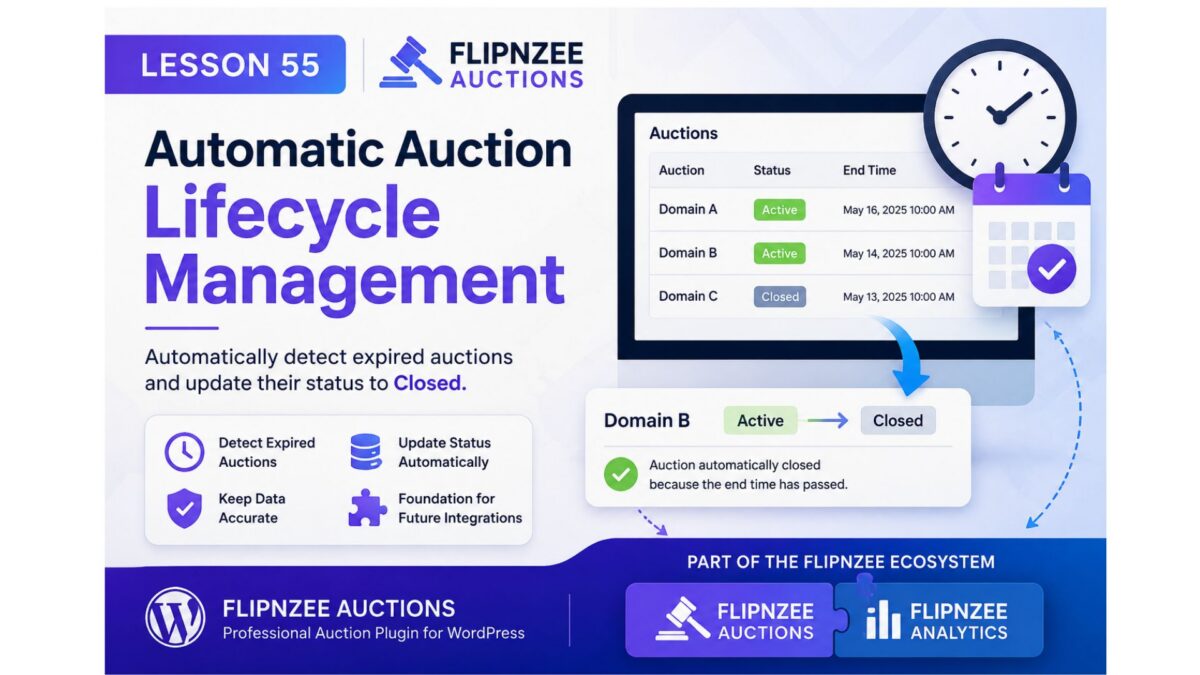
This lesson introduces automatic lifecycle management by allowing the plugin to recognize when an active auction has expired and update its status accordingly.

Although this feature is simple, it lays the foundation for future capabilities such as scheduled processing, winner notifications, payment workflows, and analytics integration.


Why It Matters

Every professional application has a clear business lifecycle.

For Flipnzee Auctions, that lifecycle includes:

Draft
   ↓
Published
   ↓
Active
   ↓
Closed
   ↓
Sold (future)

Instead of relying on administrators to manually update statuses, the plugin should keep auction records synchronized with real-world events.


Learning Objectives

By completing this lesson, you will learn how to:

  • Separate business logic from presentation.
  • Automatically manage auction states.
  • Write reusable methods that can be called throughout the plugin.
  • Keep the database synchronized with auction expiry.
  • Prepare the plugin for future automation features.

What We’ll Build

We’ll introduce a dedicated method inside the Auction Manager that:

  • Finds auctions that are still marked as Active.
  • Checks whether their end date and time have passed.
  • Updates only those auctions to Closed.

The method will be reusable and can later be called by scheduled tasks or other parts of the plugin.


Why This Fits the Flipnzee Ecosystem

Although Flipnzee Auctions and Flipnzee Analytics are separate plugins, they are designed to complement one another as part of the Flipnzee Platform.

Maintaining an accurate auction status benefits not only the Auctions plugin but also provides reliable events that other Flipnzee plugins can use.

For example, future integrations could respond when an auction closes by:

  • Refreshing marketplace statistics.
  • Updating auction dashboards.
  • Recording historical trends.
  • Triggering winner notifications.
  • Calculating conversion metrics.

By keeping the auction lifecycle accurate, we create a stronger foundation for the entire Flipnzee ecosystem.


Scope of This Lesson

To keep the lesson focused, we will only:

  • Detect expired active auctions.
  • Update their status to Closed.
  • Keep the implementation reusable.

We will not introduce background scheduling or email notifications yet. Those topics will be covered in future lessons.


Expected Behaviour

AuctionCurrent StatusEnd TimeResult
Domain AActiveTomorrowRemains Active
Domain BActiveYesterdayAutomatically Closed
Domain CClosedYesterdayNo Change

Only auctions that are both Active and Expired will be updated.


Files Expected to Change

The implementation should require only a small number of changes, primarily within:

  • includes/class-auction-manager.php
  • One location where auctions are retrieved before being displayed.

No database schema changes or user interface redesigns are expected.


Looking Ahead

This lesson begins the Auction Lifecycle series.

Future lessons can build upon it with features such as:

  • WP-Cron automation.
  • Winner and seller notifications.
  • Auction archive pages.
  • Marketplace statistics.
  • Integration hooks for other Flipnzee plugins.

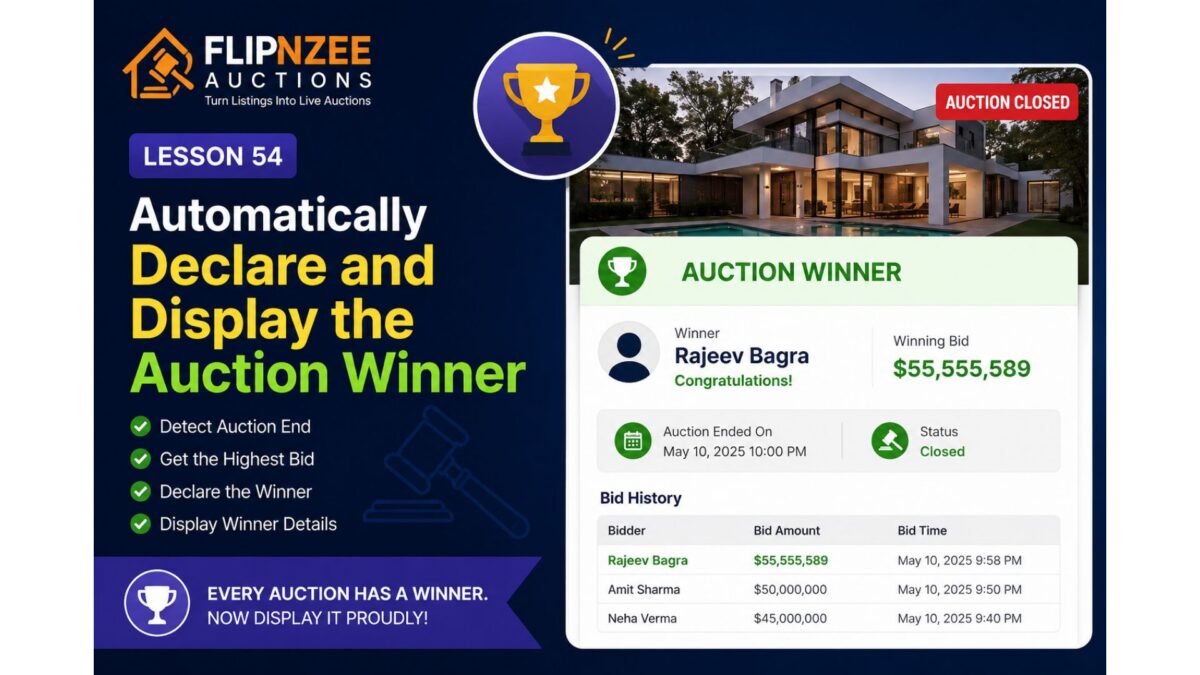
Lesson 54: Automatically Declare and Display the Auction Winner


So far, the Flipnzee Auctions plugin can:

  • Create auctions
  • Prevent duplicate auctions
  • Accept bids
  • Track the highest bidder
  • Display bid history
  • Prevent bid sniping
  • Automatically close expired auctions

However, one important question still remains unanswered:

Who actually won the auction?

Although the highest bidder is already stored in the bids table, the plugin does not yet officially declare a winner once the auction ends.

In this lesson, we’ll introduce winner determination and display the auction winner on the frontend.


What You’ll Build

By the end of this lesson, the plugin will automatically:

  • Detect that an auction has ended.
  • Retrieve the highest bid.
  • Declare that bidder as the winner.
  • Display the winner prominently.
  • Display the final winning bid.
  • Replace the bidding interface with a winner announcement.

Why This Matters

Every successful auction should end with a clear result.

Visitors should immediately know:

  • Who won?
  • What was the winning bid?
  • Is the auction still active?
  • Has the property been sold?

Professional auction platforms always display this information after an auction concludes.


Current Behaviour

Currently, a closed auction only shows:

Auction Closed

No further bids are accepted.

Although useful, it doesn’t tell visitors the outcome.


Desired Behaviour

Once the auction ends, visitors should see something like:

🏆 Auction Winner

Winner:
Rajeev Bagra

Winning Bid:
$55,555,589

Status:
Auction Closed

The bid history should remain visible below the winner announcement.


Implementation Plan

During this lesson we’ll:

Step 1

Determine whether the auction has ended.


Step 2

Retrieve the highest bidder from the bids table.


Step 3

Display the winner section above the bid history.


Step 4

Highlight the winning amount.


Step 5

Show a congratulatory message.

Example:

🏆 Congratulations!

Rajeev Bagra won this auction with a bid of
$55,555,589.

User Experience

Before the auction ends:

  • Live countdown
  • Bid form
  • Highest bidder
  • Bid history

↓

After the auction ends:

  • 🏆 Winner
  • Winning bid
  • Auction Closed badge
  • Bid history
  • No bid form

This creates a clear transition from an active auction to a completed sale.


What You’ll Learn

In this lesson, you’ll learn how to:

  • Reuse existing database queries efficiently.
  • Display conditional content based on auction status.
  • Present auction results in a user-friendly way.
  • Improve the overall completion flow of an online auction.

Final Thoughts

An auction isn’t complete until a winner is announced. By automatically displaying the winning bidder and final selling price, the Flipnzee Auctions plugin will provide visitors with a satisfying conclusion to every auction while laying the groundwork for future enhancements such as winner notifications, payment processing, sold badges, and auction archives.


Next Lesson

Lesson 55: Notify the Winning Bidder and Administrator After Auction Completion

We’ll build on this by automatically sending email notifications to the winner and the site administrator when an auction concludes, making the auction workflow even more complete.

Lesson 53: Prevent Duplicate Auctions by Enforcing One Auction Per Listing

When developing the Flipnzee Auctions plugin, a valuable architectural issue emerged during testing. Because the same listing was used repeatedly, multiple auction records were created for a single listing. Although this was acceptable during development, it exposed an important design flaw.

A marketplace listing should normally have only one auction associated with it. If multiple auction records exist for the same listing, the frontend may display an older auction instead of the latest one, leading to incorrect bid history, current bid values, and auction status.

In this lesson, the plugin will be improved to enforce a one-listing-one-auction relationship, ensuring cleaner data and more predictable behaviour.


What Problem Are We Solving?

During testing, several auction records existed for the same listing:

Listing ID 491

├── Auction #25
├── Auction #26
├── Auction #27
├── Auction #30
└── Auction #31

Although Auction #31 contained the latest bids, the frontend displayed Auction #25 because it appeared first in the query results.

The correct design should always be:

Listing ID 491
        │
        ▼
     Auction #31

One listing should always reference one auction.


Objectives

By the end of this lesson, the plugin will:

  • Prevent multiple auction records for the same listing.
  • Detect when an auction already exists.
  • Update the existing auction instead of creating another.
  • Keep auction history clean.
  • Ensure the frontend always displays the correct auction.

Implementation Plan

The implementation will include the following improvements:

Step 1

Check whether an auction already exists for the selected listing before inserting a new record.


Step 2

If an auction already exists:

  • Update its prices.
  • Update auction dates.
  • Update reserve price.
  • Update Buy Now price.
  • Preserve the same auction ID.

Step 3

Only create a new auction if no auction exists for that listing.


Step 4

Display an admin notice such as:

An auction already exists for this listing. The existing auction has been updated instead of creating a duplicate.

This makes the behaviour clear to administrators.


Step 5

Verify that frontend shortcodes always display the latest auction because only one auction record exists.


Expected Benefits

After completing this lesson:

  • Cleaner database structure.
  • No duplicate auctions.
  • Correct bid history.
  • Correct highest bidder.
  • Correct current bid.
  • Easier maintenance.
  • Better user experience.

What You Will Learn

This lesson introduces an important database design principle:

Enforce data integrity at the application level rather than relying on users to avoid mistakes.

Instead of allowing duplicate auction records and trying to handle them later, the plugin will proactively prevent them from being created.

This small architectural improvement will make the Flipnzee Auctions plugin significantly more reliable as development continues.


Coming Up Next

In the next implementation lesson, we will modify the auction creation logic so that every listing can have only one associated auction, automatically updating the existing auction whenever the administrator edits its settings instead of creating duplicate records.

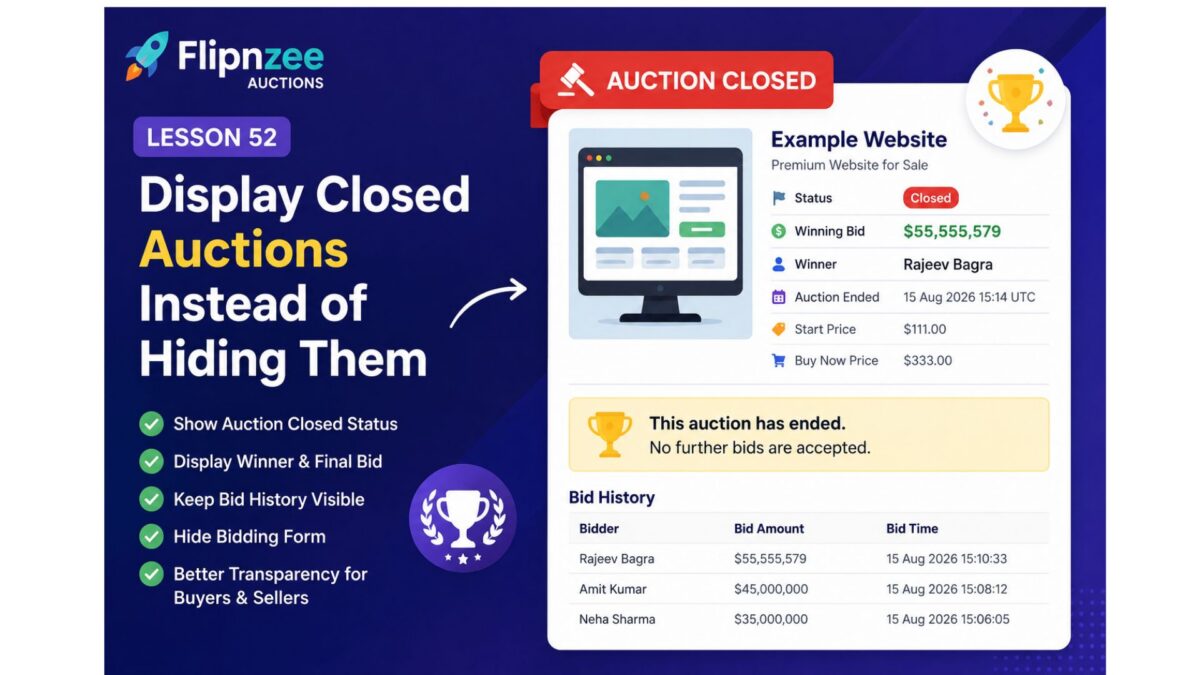
Lesson 52: Display Closed Auctions Instead of Hiding Them

In the previous lesson, we introduced automatic auction closure based on the auction end time. While that prevented late bids, it also exposed an important usability issue—once an auction was marked as closed, the entire auction disappeared from the frontend.

In this lesson, we’ll improve the user experience by displaying completed auctions instead of hiding them. Visitors will still be able to see the auction results, while bidding will be disabled.


What You’ll Learn

By the end of this lesson, you’ll be able to:

  • Display both active and closed auctions.
  • Show an Auction Closed status message.
  • Continue displaying the final bid amount.
  • Display the winning bidder.
  • Keep the complete bid history visible.
  • Disable the bid form once the auction has ended.
  • Improve transparency and trust for buyers and sellers.

Why This Matters

Imagine visiting an auction page only to discover that it has completely disappeared after the auction ended.

Questions immediately arise:

  • Who won?
  • What was the final bid?
  • Was the auction successful?
  • Is the page broken?

Professional auction platforms never hide completed auctions. Instead, they preserve the auction page as a permanent record.

Examples include:

  • eBay
  • Heritage Auctions
  • Sotheby’s
  • Copart

Visitors can still review the auction outcome even though bidding has ended.


Current Behaviour

At present, our shortcode behaves roughly like this:

if ( $auction['status'] !== 'active' ) {
    return '';
}

As soon as the auction status changes to closed, nothing is displayed.


Desired Behaviour

Instead of hiding the auction, we’ll show something like this:

Status
Closed

Winning Bid
$55,555,579

Winner
Rajeev Bagra

Auction Ended
15 Aug 2026 15:14 UTC

🏆 This auction has ended.
No further bids are accepted.

The bid history will remain visible.

Only the bidding form will disappear.


Implementation Plan

During this lesson we’ll:

Step 1

Remove the logic that hides closed auctions.


Step 2

Display an “Auction Closed” badge whenever the auction status is closed.


Step 3

Continue showing:

  • Start Price
  • Current Bid
  • Highest Bidder
  • Buy Now Price
  • Auction End Time
  • Bid History

Step 4

Hide only:

  • Bid input field
  • Place Bid button

Step 5

Display a friendly message:

🏁 This auction has ended. No further bids are accepted.


Benefits

After completing this lesson, Flipnzee Auctions will provide a much more professional experience.

Visitors will be able to:

  • Verify who won the auction.
  • See the final selling price.
  • Review the complete bid history.
  • Trust that auctions are permanently recorded.
  • Understand immediately that bidding has ended.

What We’ll Build

By the end of this lesson, every completed auction page will resemble a real-world auction result page instead of disappearing completely.

This lays the foundation for future enhancements such as:

  • 🏆 Winner badges
  • 🎉 Sold ribbons
  • Seller notifications
  • Winner email notifications
  • Auction archives
  • Recently Sold listings
  • Searchable auction history

Next Lesson

Lesson 53: Highlight the Winning Bidder and Final Selling Price for Closed Auctions

In the next lesson, we’ll enhance the completed auction page by prominently displaying the winner and the final sale price with improved styling, making the auction results more visually appealing and easier to understand.

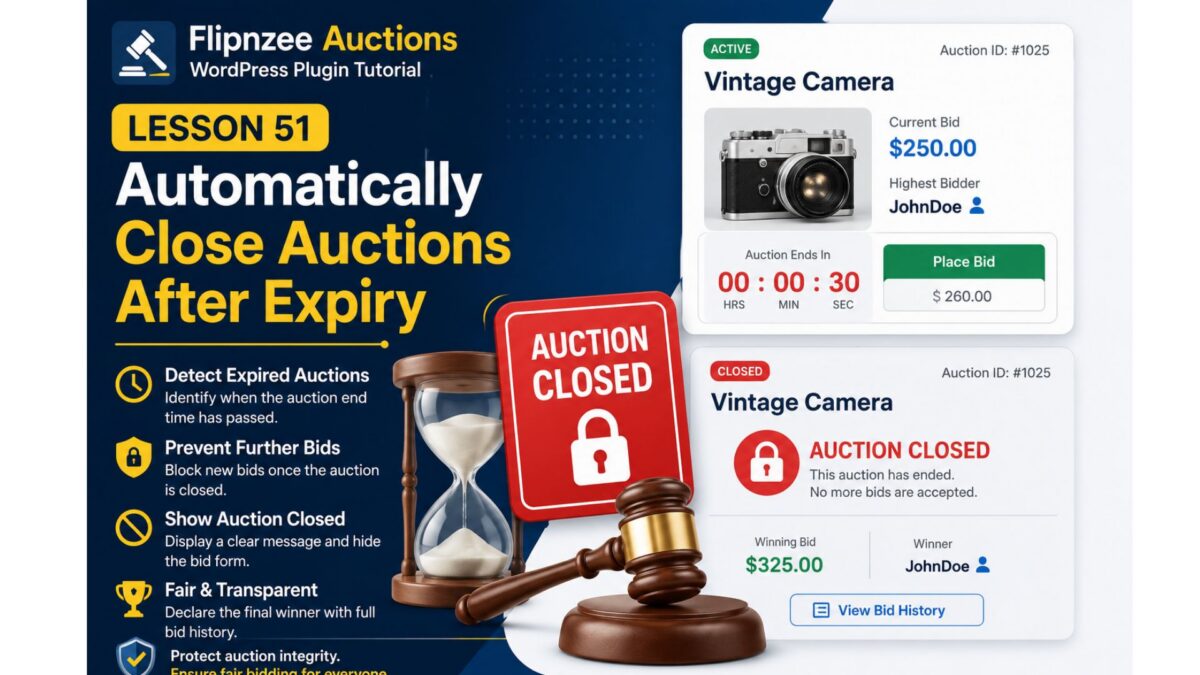
Lesson 51: Automatically Close Auctions After Expiry

I would revise Lesson 51 rather than discard it. The feature you implemented is still useful, but the title and objective should reflect what it actually does.

Revised Lesson 51

Lesson 51: Automatically Close Auctions After the End Time

What This Lesson Covers

In this lesson, we’ll make the auction system automatically recognize when an auction has reached its end time.

Instead of requiring an administrator to manually close auctions, the plugin will automatically update the auction status to closed whenever a visitor interacts with the auction after its scheduled end.

This prevents late bids from being accepted and ensures auctions finish at the correct time.


What We Implement

✔ Compare the current UTC time with the auction end time.

✔ Automatically change the auction status from active to closed.

✔ Prevent any future bids from being accepted.

✔ Keep the auction data intact for later display.


Why This Matters

Without automatic closure:

  • Auctions could remain active indefinitely.
  • Users might continue placing bids after the deadline.
  • Administrators would have to close every auction manually.

With this improvement:

  • Auctions close themselves automatically.
  • The database always reflects the correct status.
  • The bidding system becomes much more reliable.

What We Did

Inside the bid validation process, we checked whether the auction had already expired.

If the current UTC time is greater than or equal to the auction end time, we immediately update the auction status.

Example:

if ( strtotime( gmdate( 'Y-m-d H:i:s' ) ) >= strtotime( $auction->auction_end ) ) {

    $wpdb->update(
        $auction_table,
        array(
            'status' => 'closed',
        ),
        array(
            'id' => $auction_id,
        ),
        array(
            '%s',
        ),
        array(
            '%d',
        )
    );

    return false;
}

What Happens Now

If a visitor attempts to place a bid after the auction has ended:

  1. The plugin checks the auction end time.
  2. The auction status is automatically updated to closed.
  3. The bid is rejected.
  4. Future visitors will also see the auction as closed.

Current Limitation

At this stage, a closed auction is no longer displayed by the frontend shortcode.

While this successfully prevents further bidding, it also hides the auction from visitors.

We’ll improve this behavior in the next lesson.


Next Lesson

Lesson 52: Display Closed Auctions with Winner Information

Instead of hiding completed auctions, we’ll:

  • Display an Auction Closed badge.
  • Show the winning bidder.
  • Display the winning bid.
  • Keep the bid history visible.
  • Hide only the bidding form.
  • Create a permanent auction record for visitors.